LMS - Online Documentation.
Welcome to the Learning Management System (LMS) documentation. This guide is designed to serve both prospective customers evaluating the platform and existing users seeking to maximize its capabilities.
For organizations exploring our LMS, this document provides a comprehensive overview of key features, capabilities, and benefits—helping you understand how the platform can support your training, onboarding, and development goals.
For active users, this guide acts as a practical resource to help you navigate the system efficiently. It includes step-by-step instructions, best practices, and tips to ensure you can fully leverage the platform for creating, managing, and delivering learning experiences.
Our LMS is built to streamline learning processes, enhance user engagement, and provide actionable insights through intuitive tools and robust functionality. Whether you are an administrator, instructor, or learner, this documentation will help you get the most out of the system.
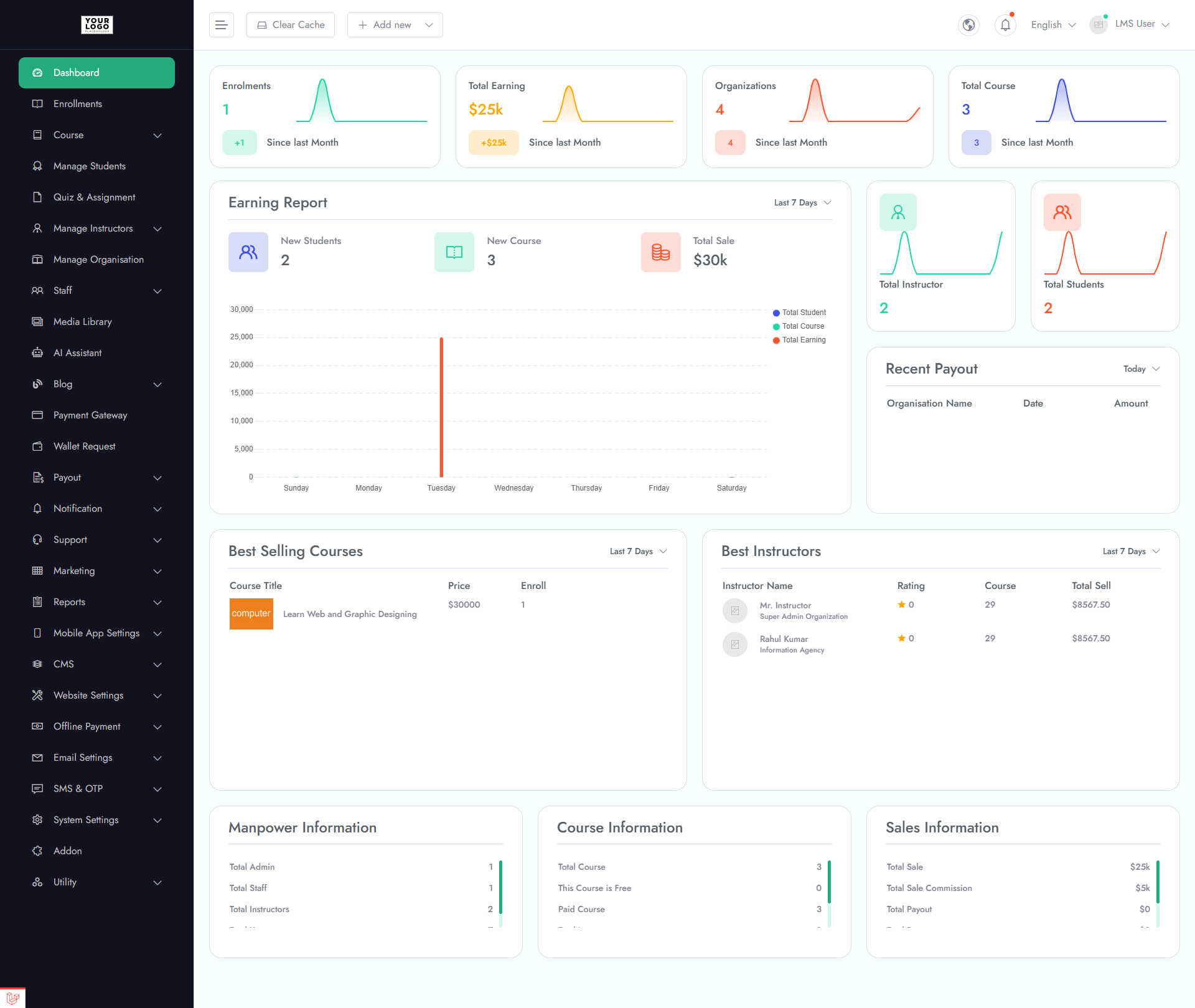
The Dashboard provides a quick snapshot of your LMS performance using key metric cards and AI-driven insights.
- 1. Total Earnings - Overview of revenue generated
- 2. Total Enrollments - Total number of learners enrolled
- 3. Organizations - Active organizations on the platform
- 4. Courses - Total courses available
- 5. Earnings Report - Visual breakdown of revenue trends
The Courses section allows you to view and manage all learning content in one place.
- 1. Course List - Displays all available courses with key details such as title, status, enrollments, and performance.
- 2. Add Course - Easily create new courses by adding content, pricing, and configuration details.
This section helps administrators efficiently organize, update, and expand their course offerings.
Watch Tutorial
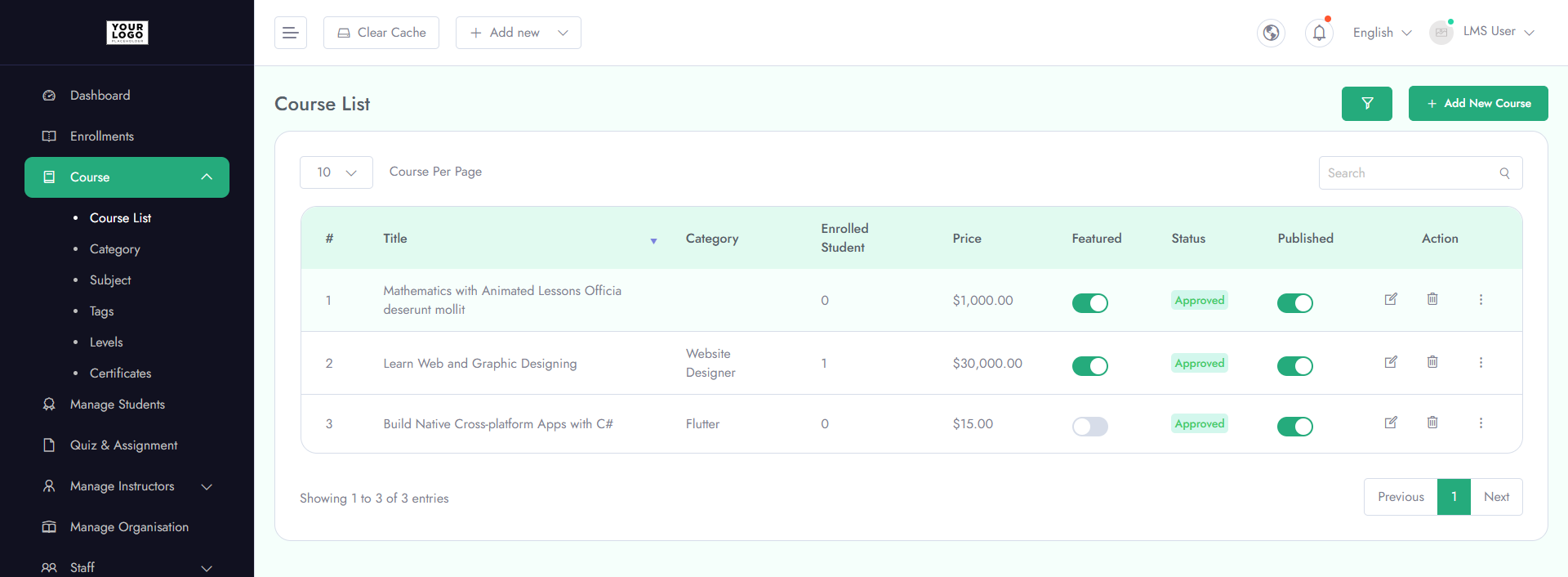
The Course List provides a detailed view of all courses along with key information and management options.
- 1. Enrolled - Displays the number of learners enrolled in each course
- 2. Price - Shows the course pricing
- 3. Featured - Indicates whether the course is marked as featured
- 4. Published - Displays the current status (published/unpublished)
- 5. Actions - Options to Edit or Delete courses
This view enables quick monitoring and easy management of all courses from a single place.
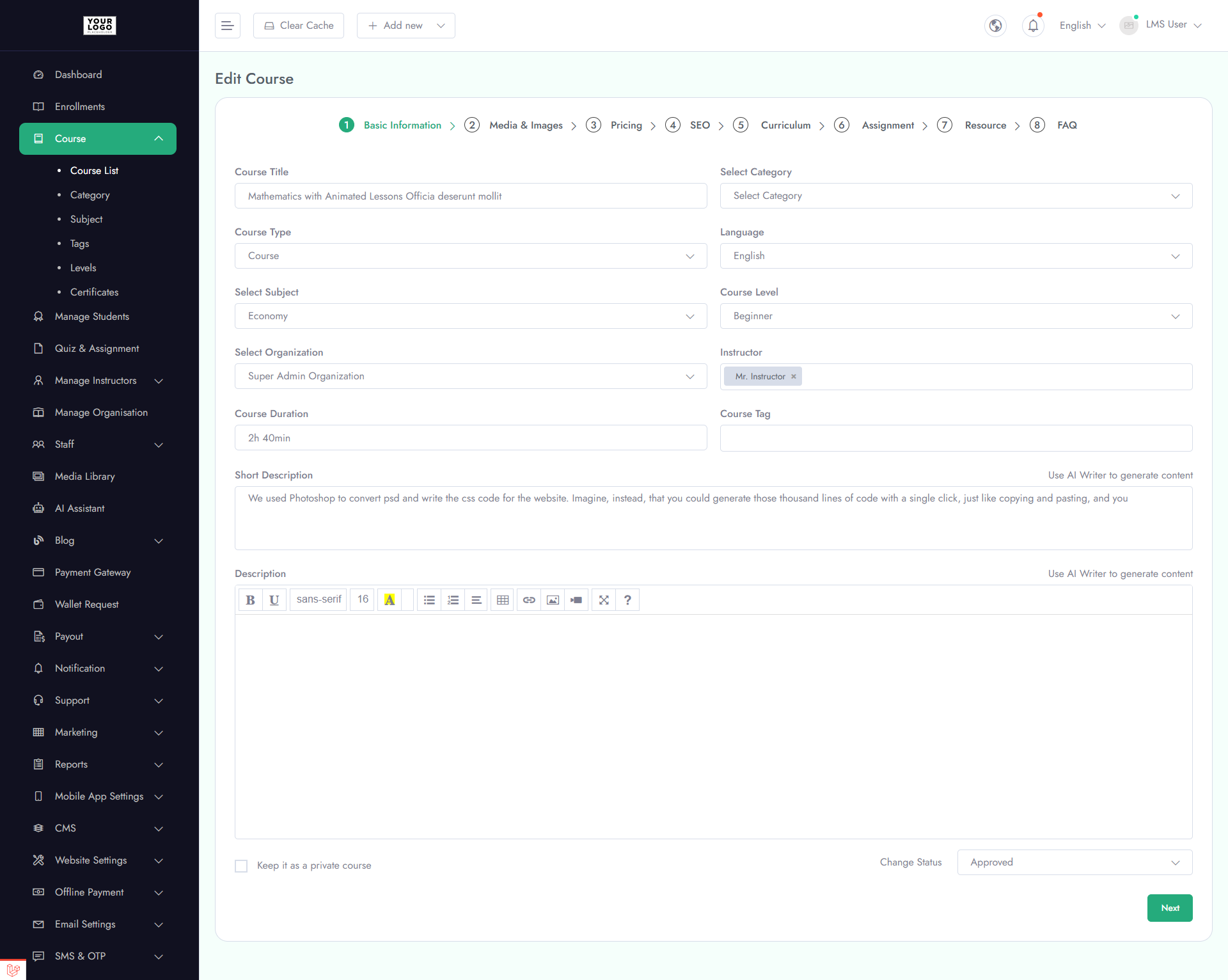
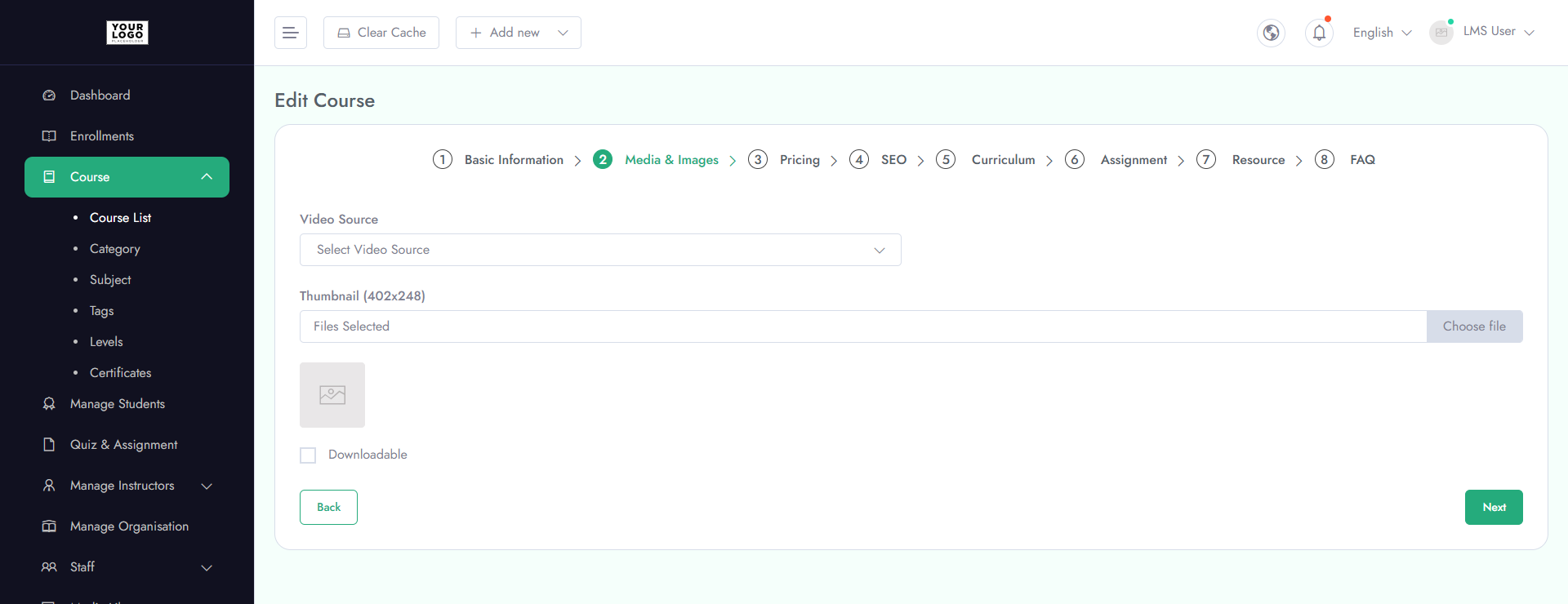
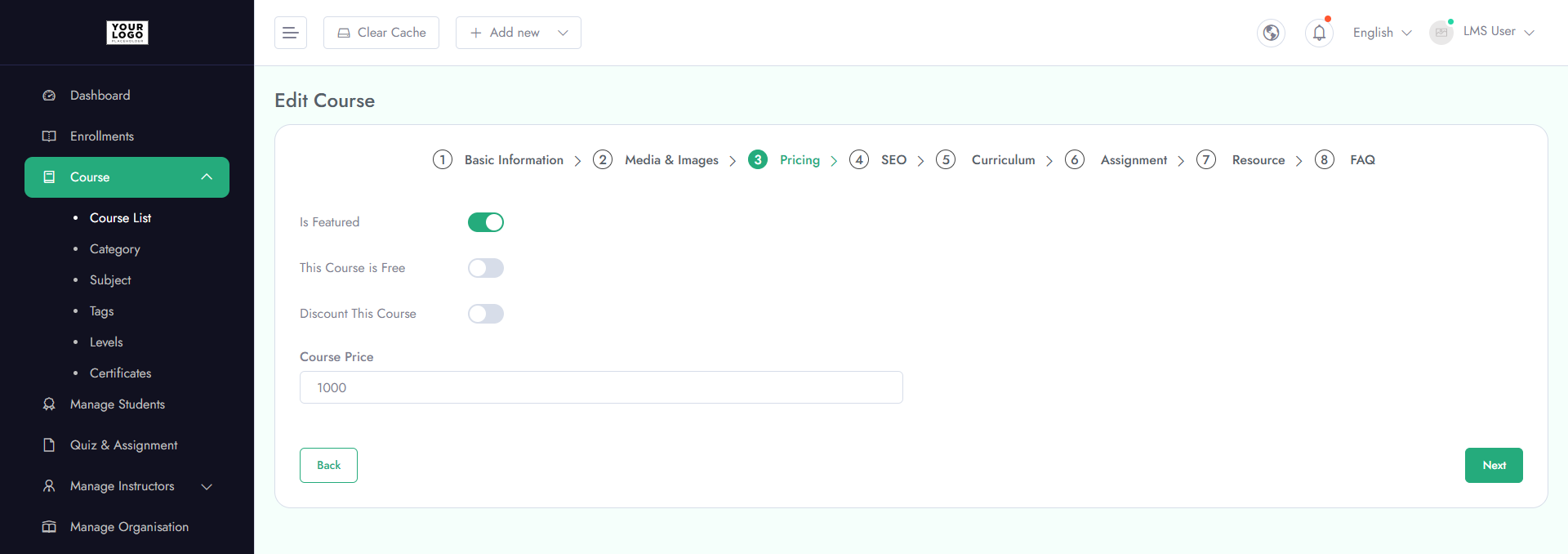
Create and manage courses using the following sections:
- 1. Basic Info - Title, description, and category
- 2. Media & Images - Upload thumbnails and videos
- 3. Pricing - Set price and access type
- 4. SEO - Add meta details for visibility
- 5. Curriculum - Organize lessons and modules
- 6. Assignment - Add assessments
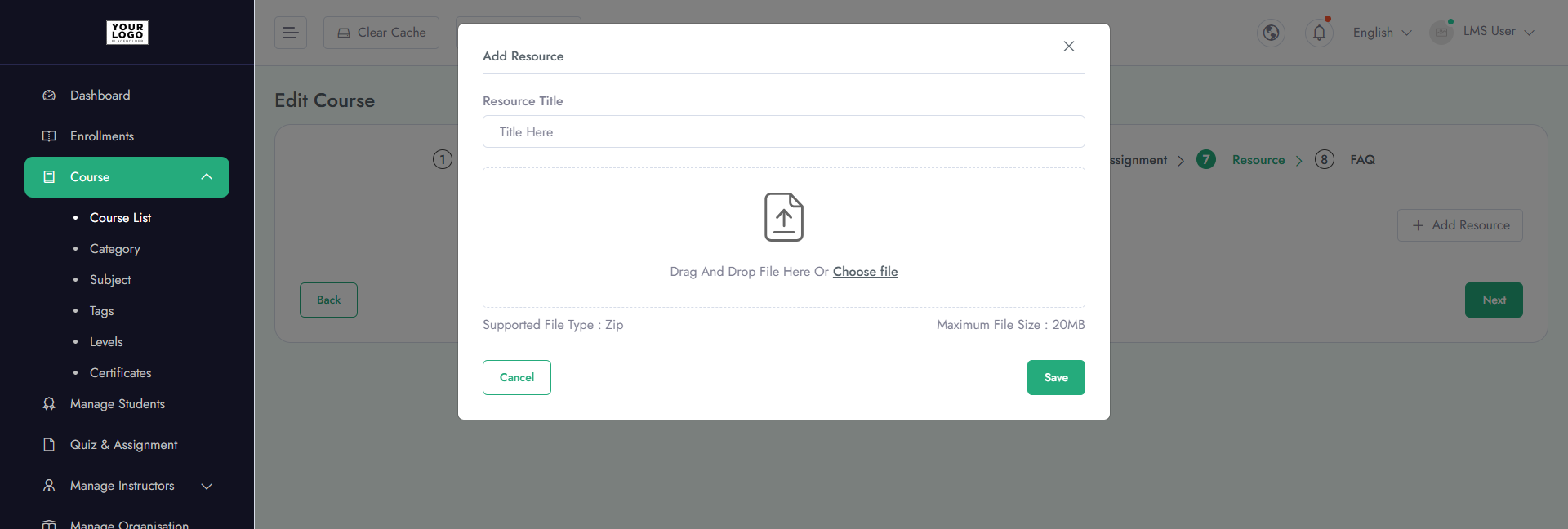
- 7. Resources - Upload supporting files
- 8. FAQ - Add common questions
This view enables quick monitoring and easy management of all courses from a single place.
Watch Tutorial
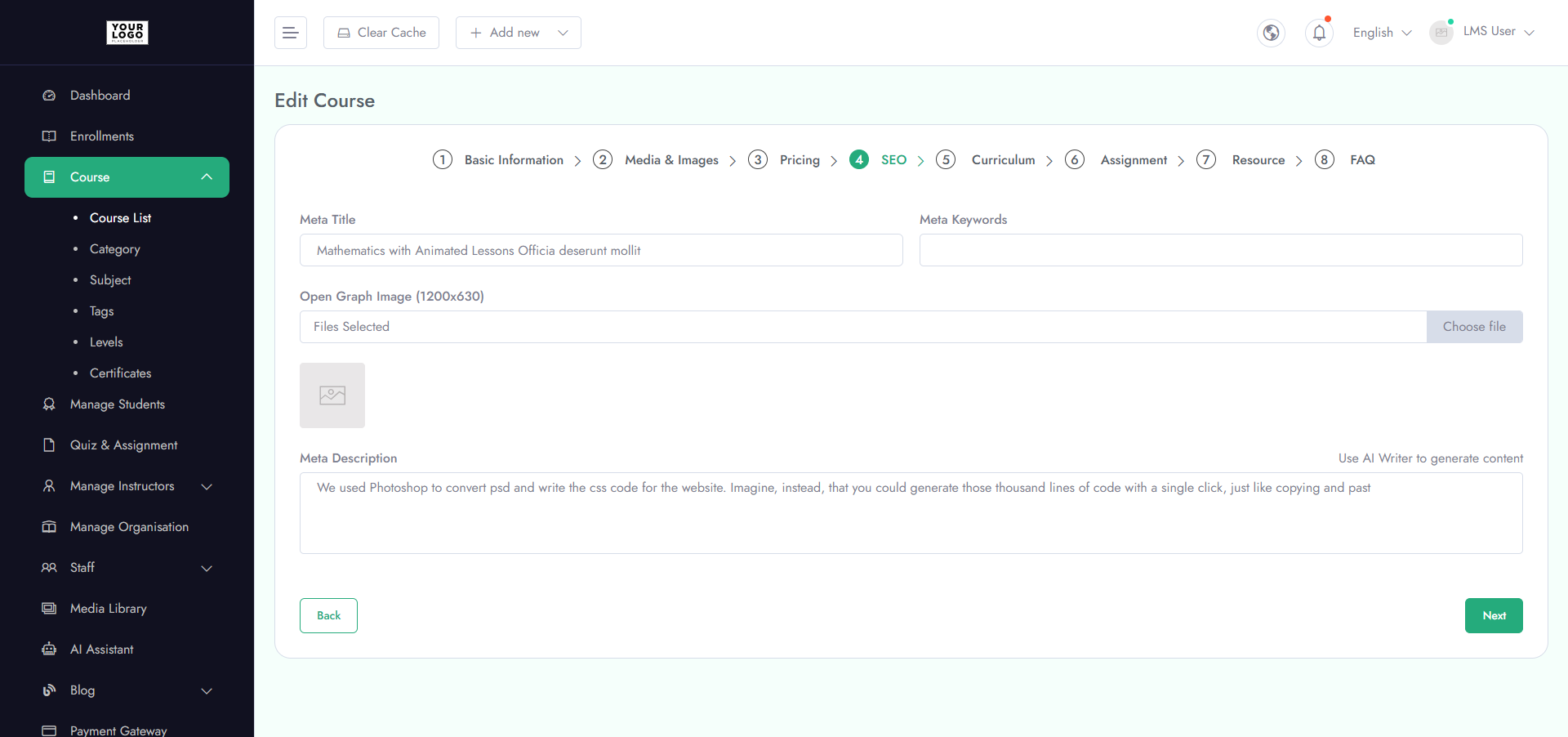
Optimize your course for search engines and social sharing:
- 1. Meta Title - Title that appears in search results
- 2. Meta Description - Brief description for search engines
- 3. Keywords - Target keywords for SEO ranking
- 4. Open Graph (OG) - Title, description, and image for social media previews
Watch Tutorial
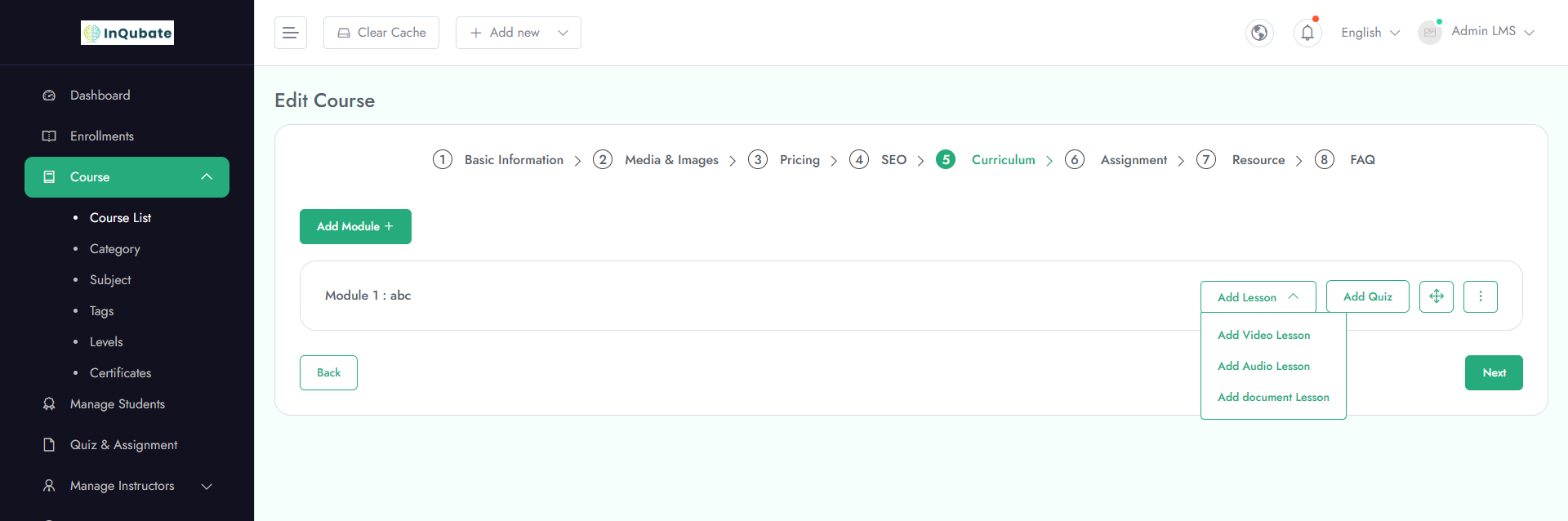
Organize and structure your course content effectively:
- 1. Modules & Lessons - Add and arrange course sections
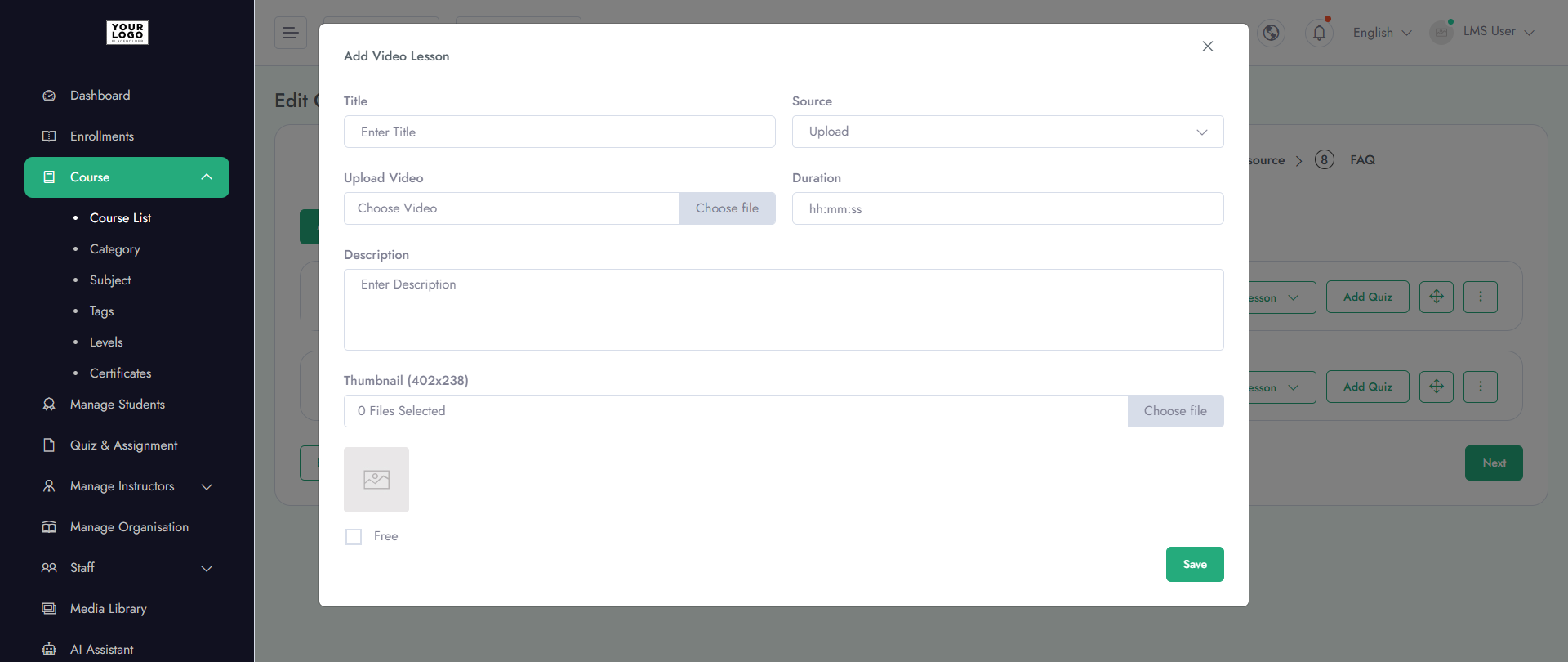
- 2. Video Upload - Upload videos from your computer, MP4 files, or embed from YouTube
- 3. Quiz Option - Add quizzes to assess learner understanding
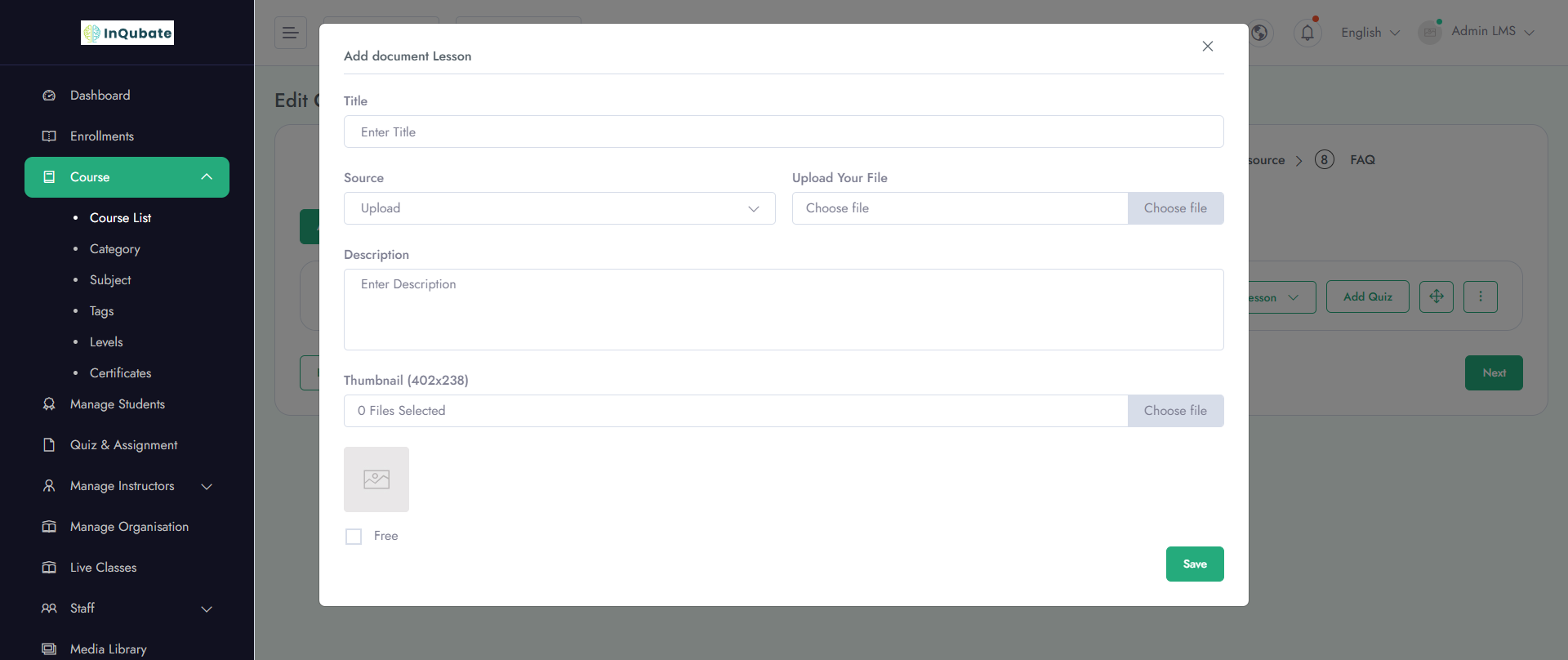
- 4. Upload Audio - Upload Audio courses
- 4. Upload PDF courses - Option to upload PDF courses
Watch Tutorial
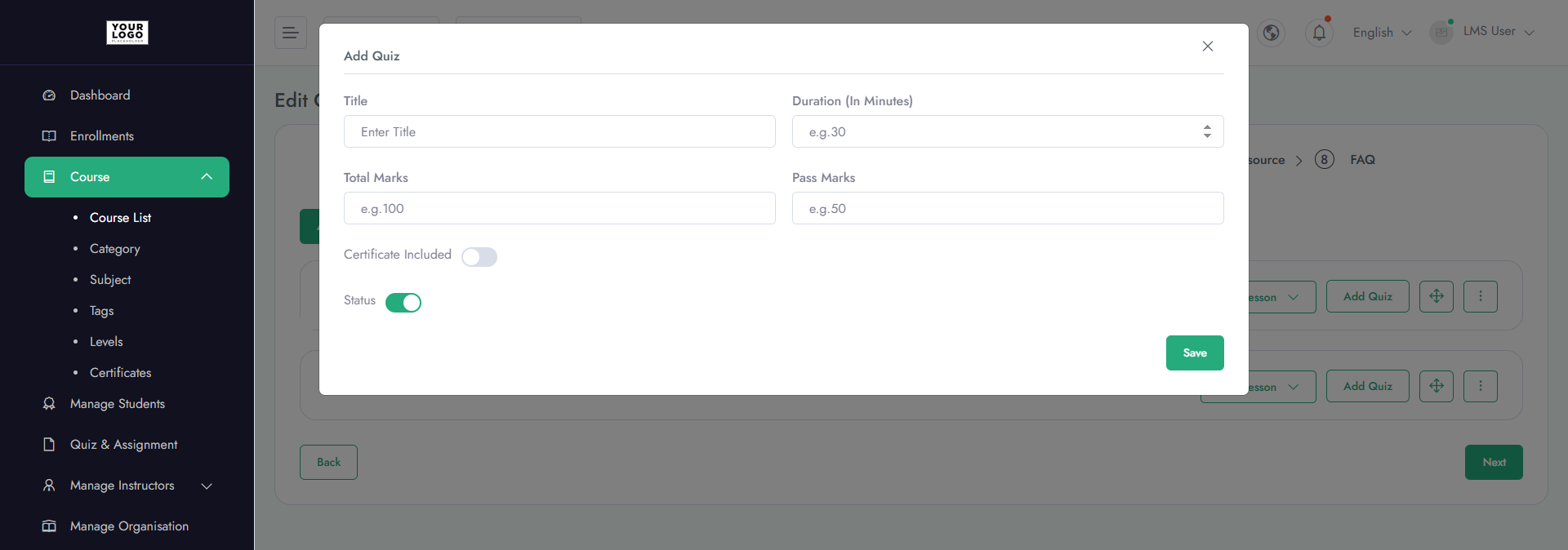
Manage assessments within your course:
- 1. Duration - Set the time limit for completing the quiz
- 2. Total Marks - Define the maximum score achievable
- 3. Question Types - Add multiple-choice, true/false, or descriptive questions
- 4. Randomization - Option to shuffle questions for each learner
Watch Tutorial
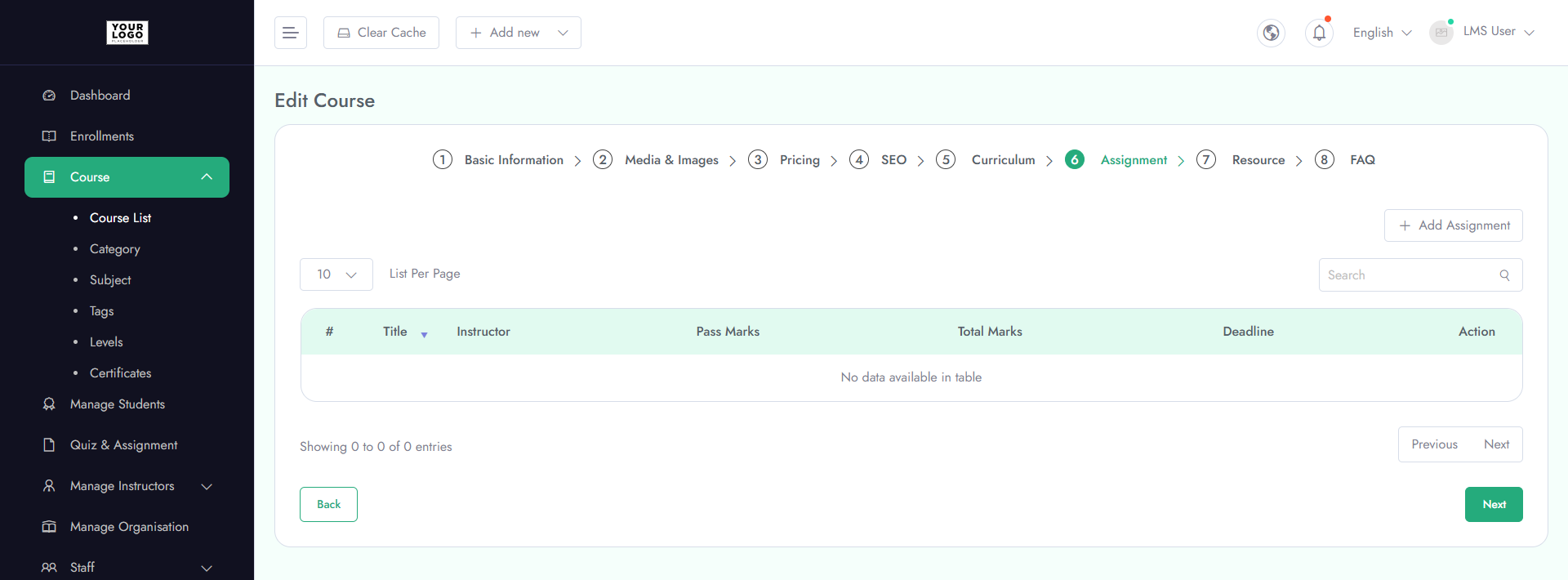
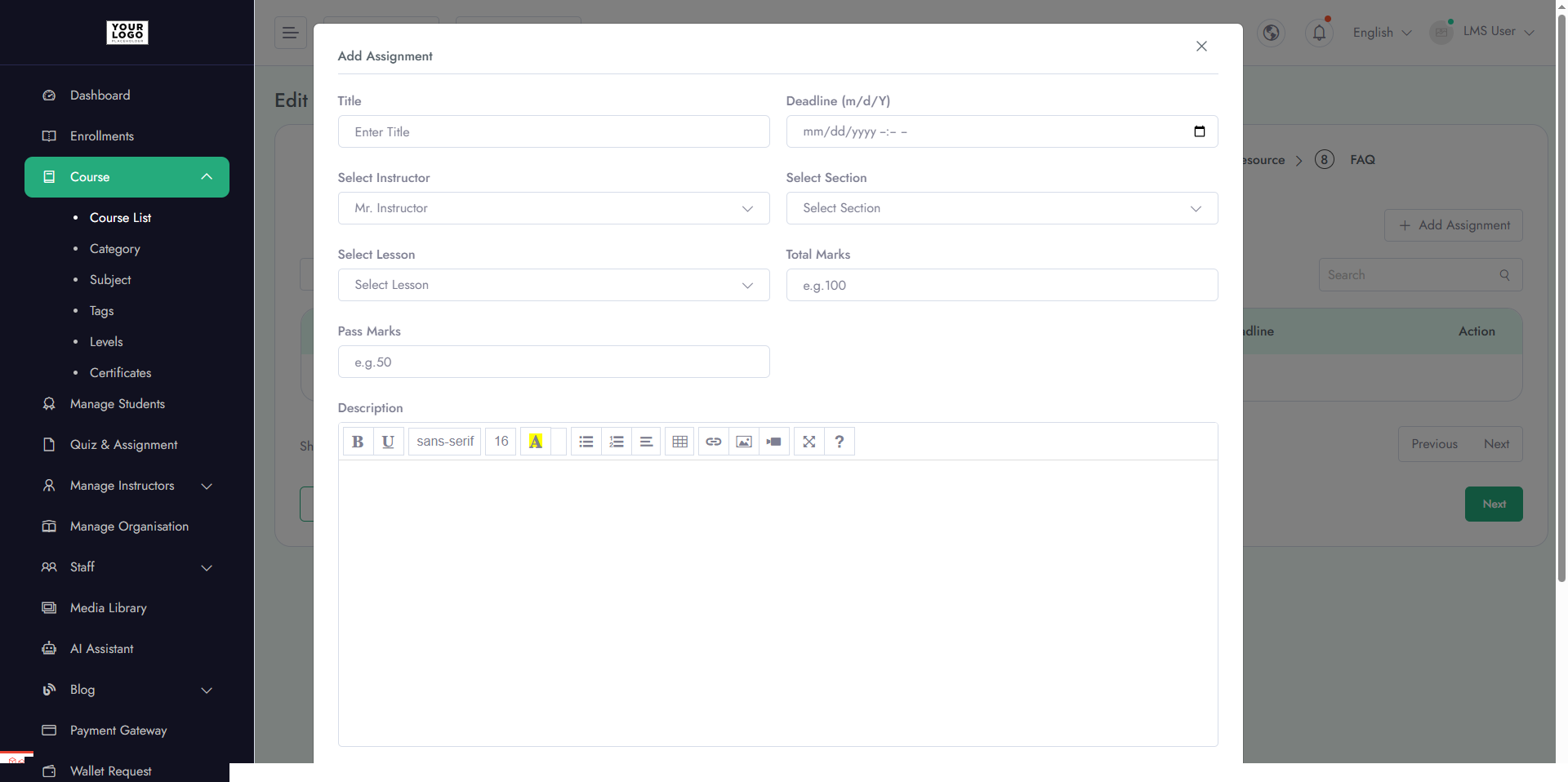
Manage course assignments and evaluations:
- 1. Total Marks - Define the maximum score for the assignment
- 2. Instructor - Assign the instructor responsible for grading and feedback
- 3. Submission - Allow learners to upload files or complete tasks online
- 4. Deadline - Set due dates for timely submissions
Watch Tutorial
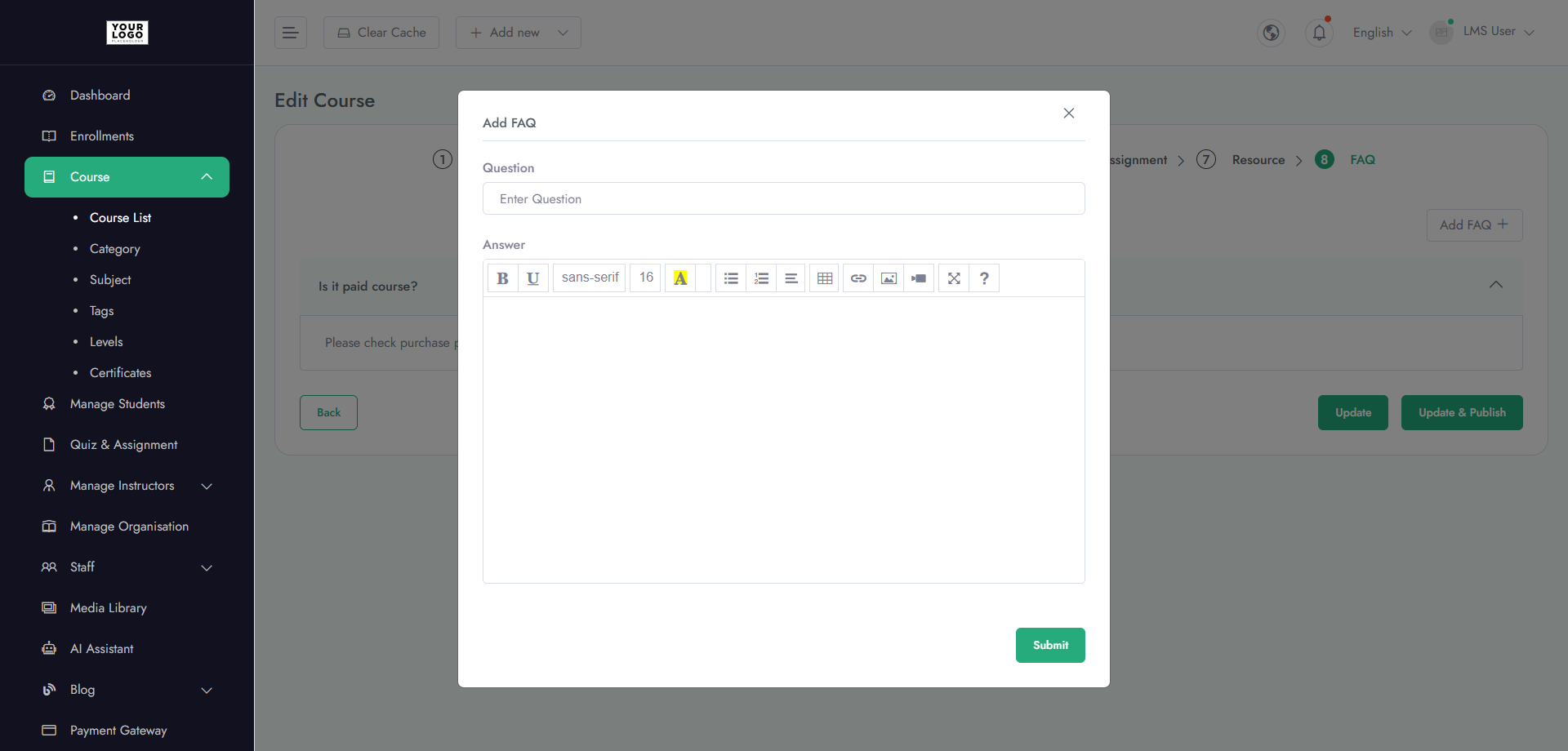
Add frequently asked questions to help learners get quick answers:
- 1. Question & Answer - Enter common learner queries and detailed responses
- 2. Organize by Topic - Group FAQs by module or course section
- 3. Update Anytime - Edit or add new FAQs as needed to address learner needs
Watch Tutorial
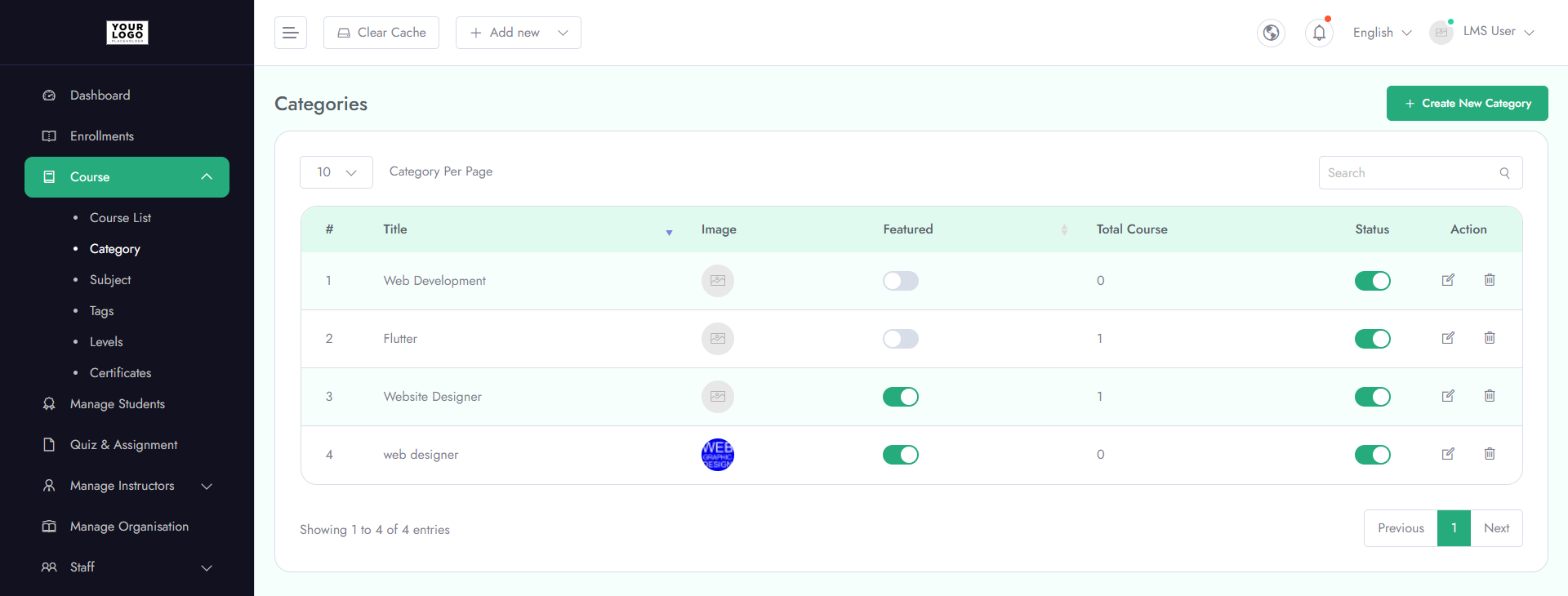
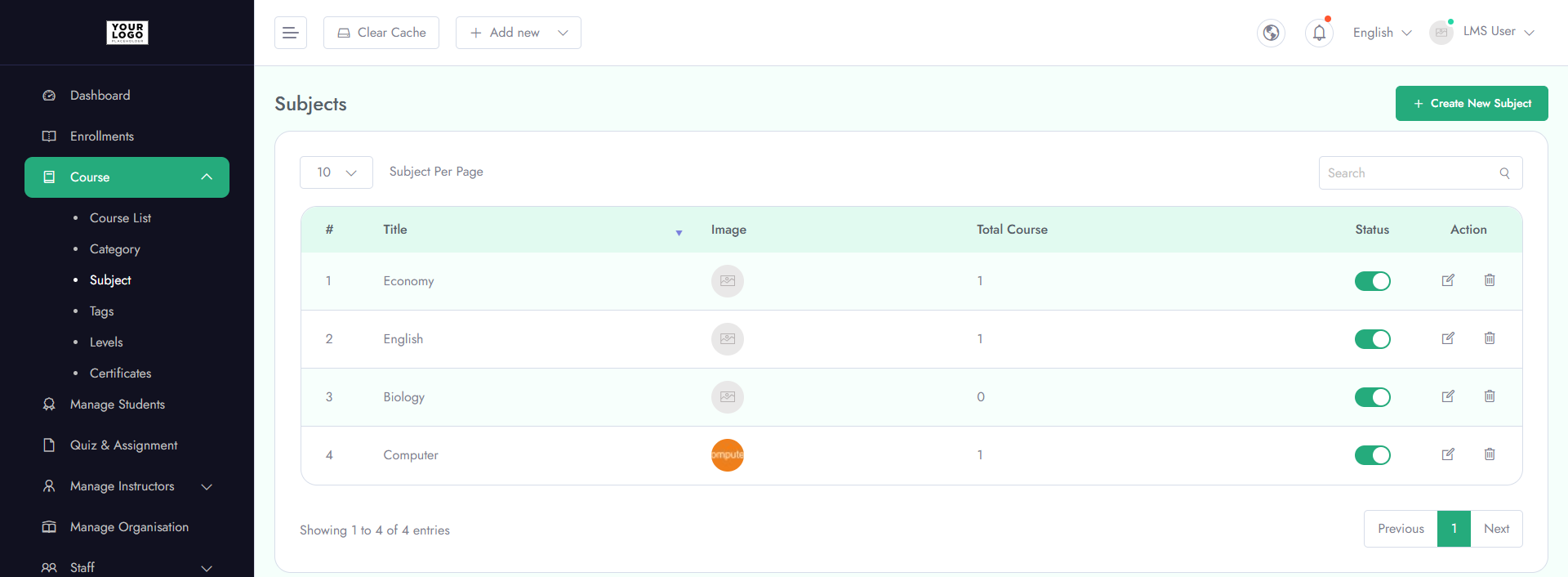
Manage course categories to organize your LMS content effectively:
- 1. Total Courses - Shows the number of courses under each category
- 2. Featured - Mark categories as featured for promotion
- 3. Images - Upload category thumbnails or icons
- 4. Actions - Edit or delete categories as needed
Watch Tutorial
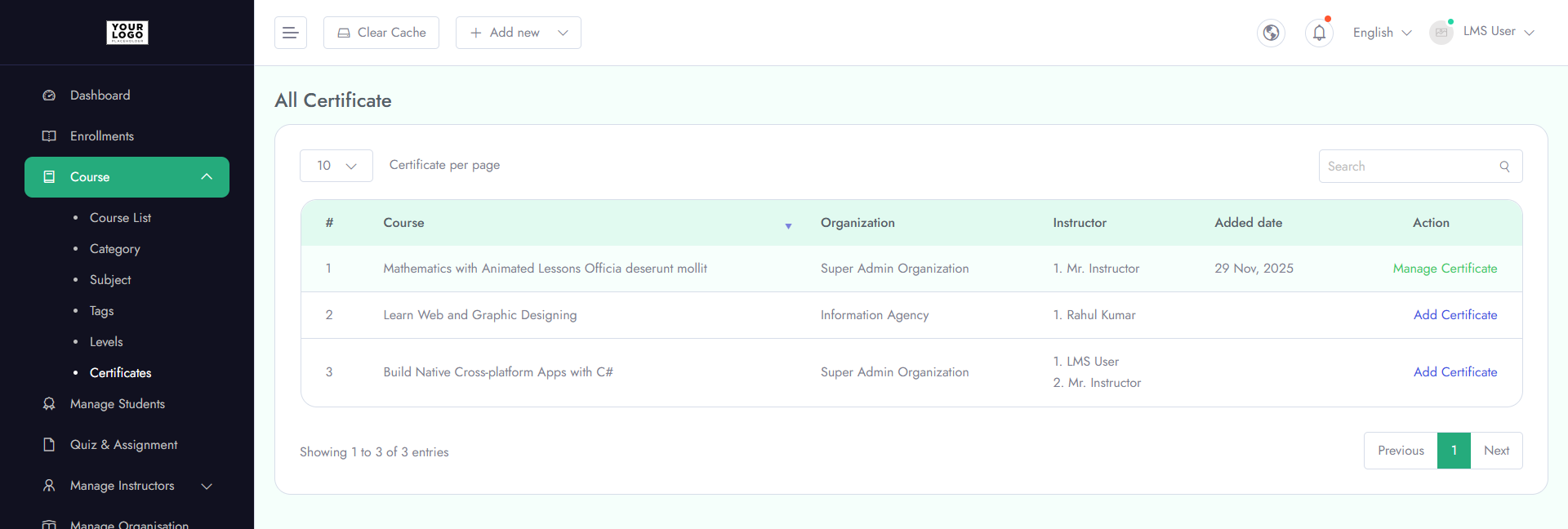
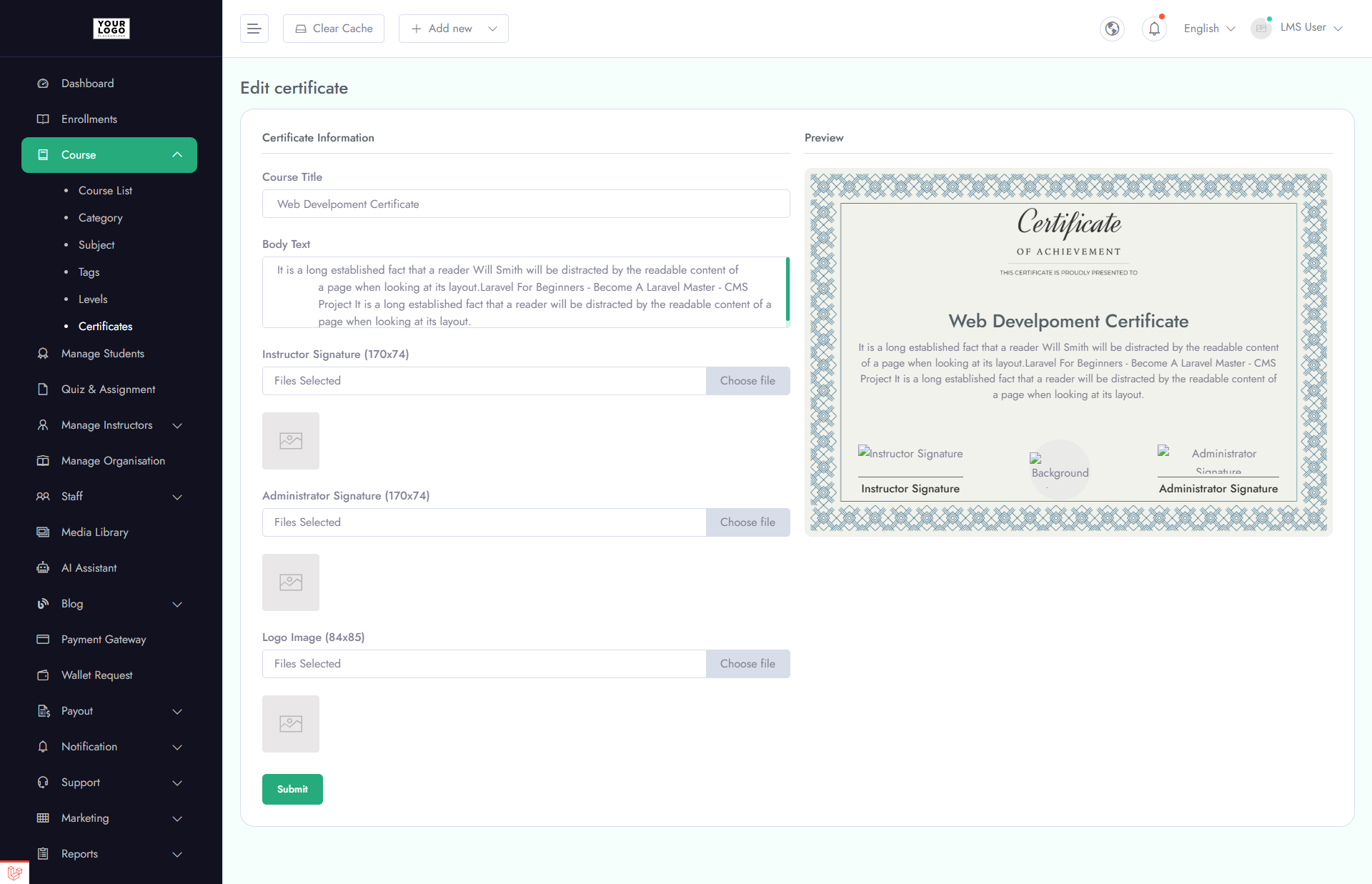
Create and manage course completion certificates with full customization:
- 1. Custom Design - Add your own branding, logo, and colors
- 2. Editable Templates - Customize text, layout, and style for each certificate
- 3. Automatic Issuance - Certificates can be automatically awarded upon course completion
- 4. Download & Print - Learners can download or print their certificates
Watch Tutorial
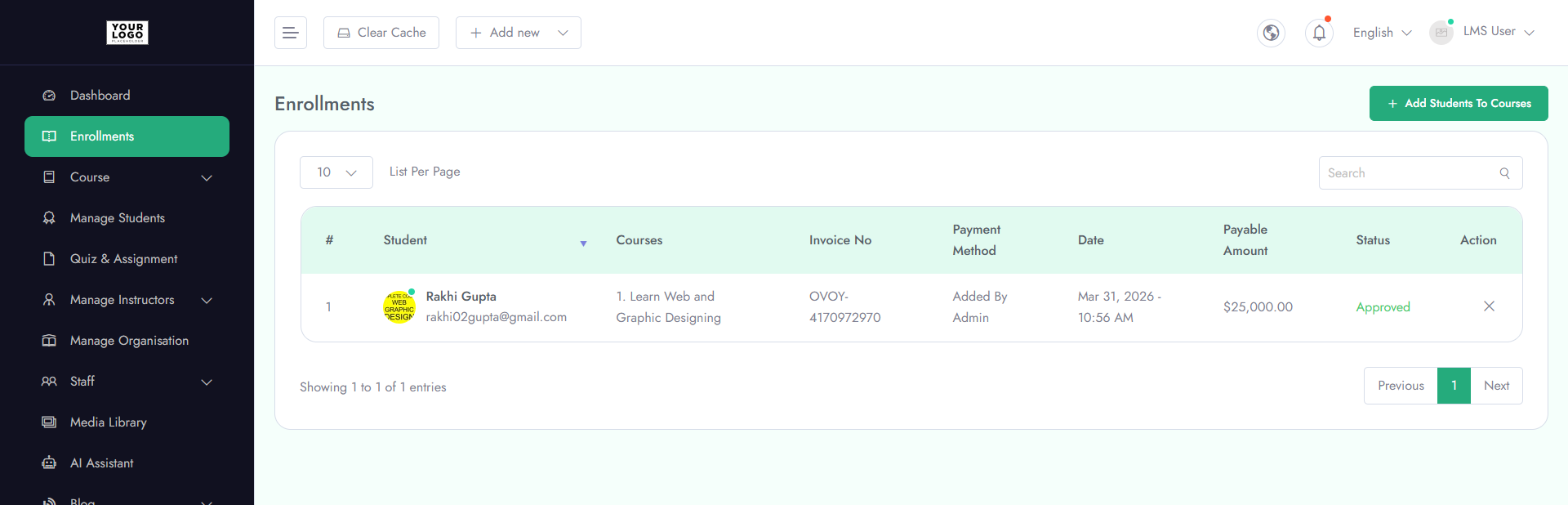
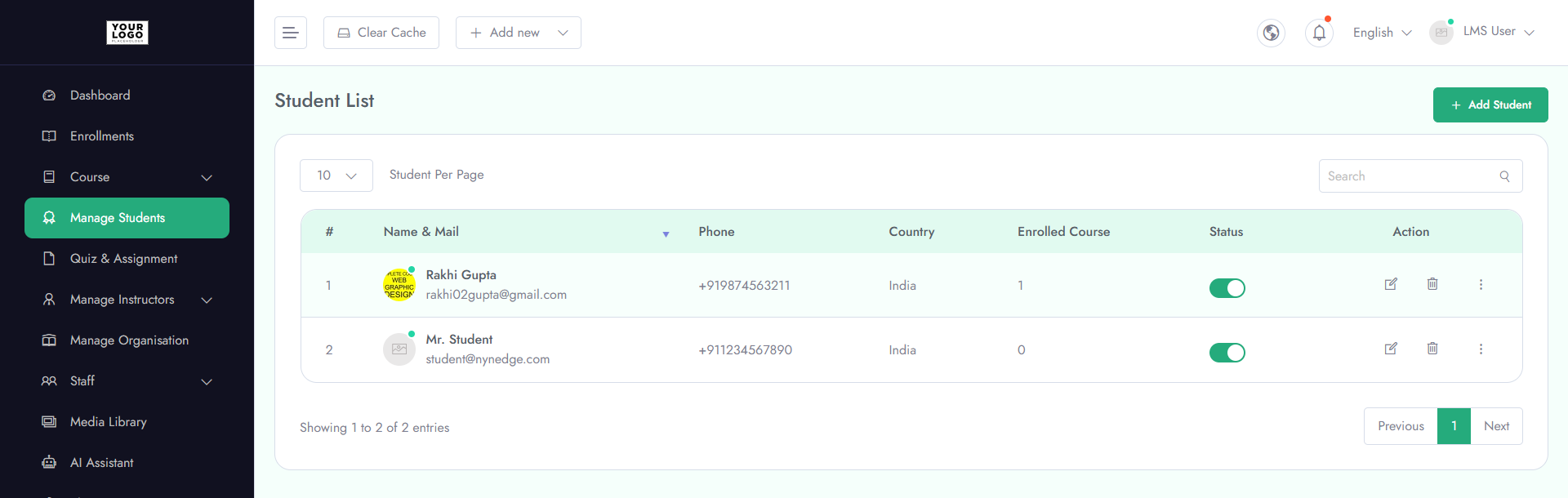
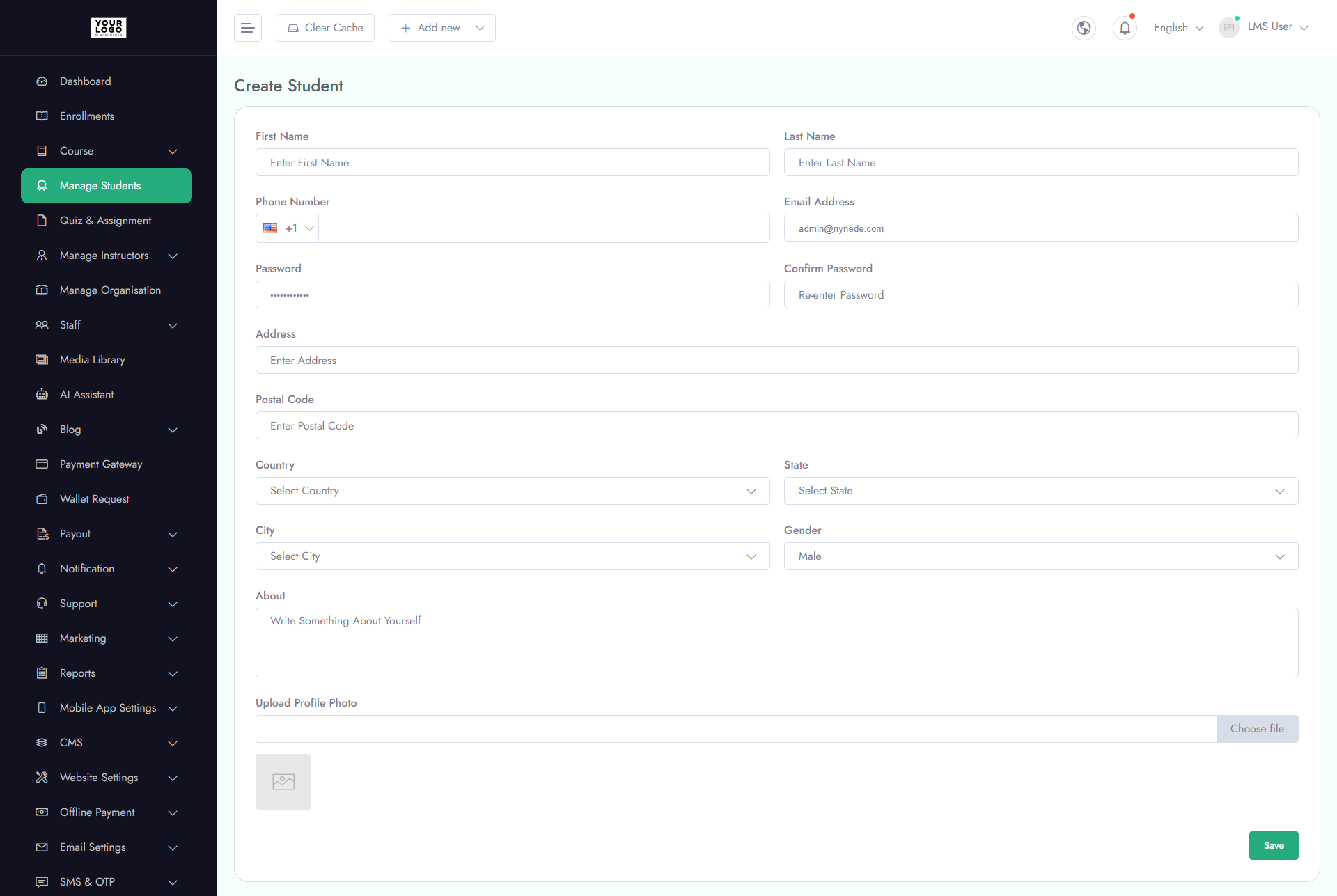
Manage learner information and enrollment details:
- 1. Name - Full name of the student
- 2. Phone - Contact number
- 3. Country - Country of residence
- 4. Enrolled Courses - List of courses the student is enrolled in
- 3. Actions - Edit student information or delete records as needed
Watch Tutorial
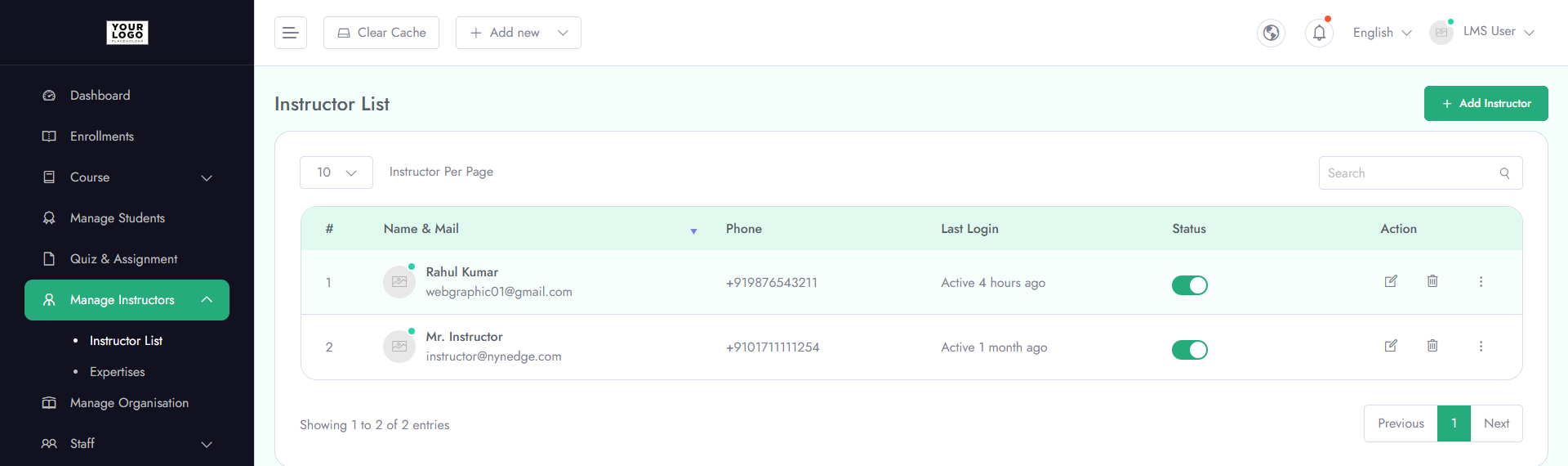
Manage all instructors and their course assignments:
- 1. Instructor Details - Name, email, and profile information
- 2. Courses Assigned - List of courses taught by the instructor
- 3. Status - Active or inactive status of the instructor
- 4. Actions - Edit instructor details or delete from the system
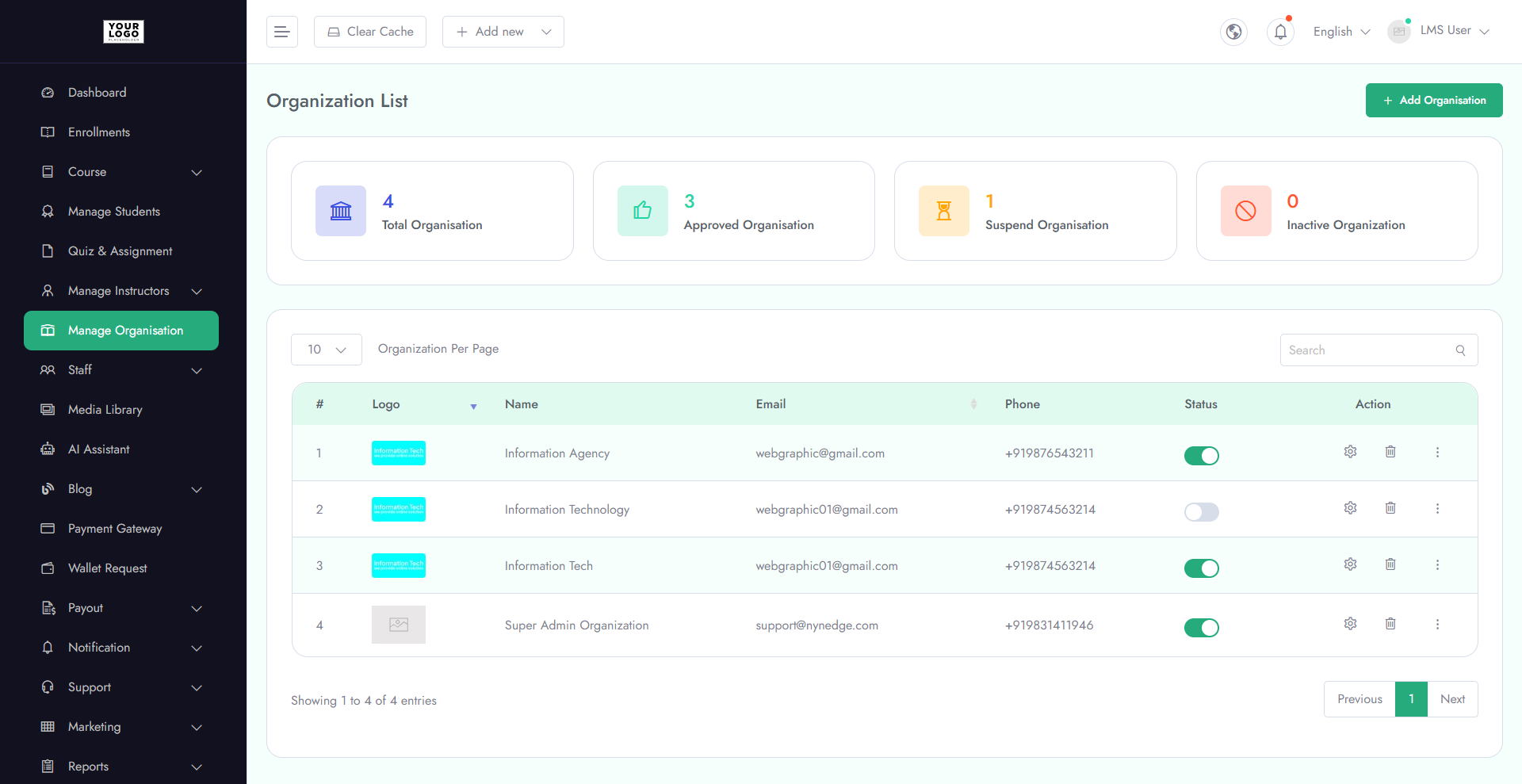
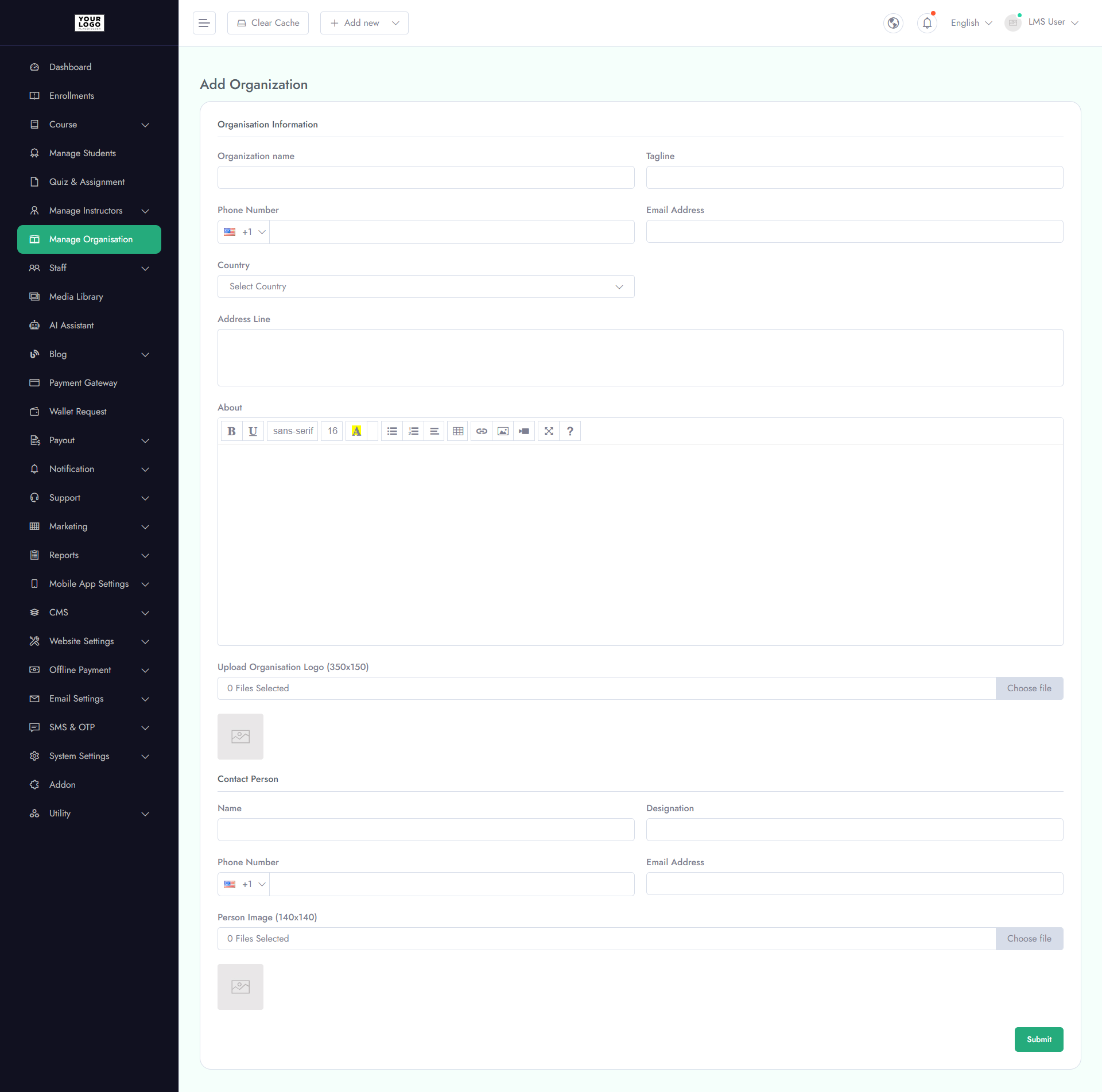
Manage partner organizations and their course contributions:
- 1. Organization Details - Name, email, and phone number
- 2. Edit/Delete - Update or remove organization information
- 3. Content Upload Access - Allow organization users or content creators to upload and manage their own courses
Watch Tutorial
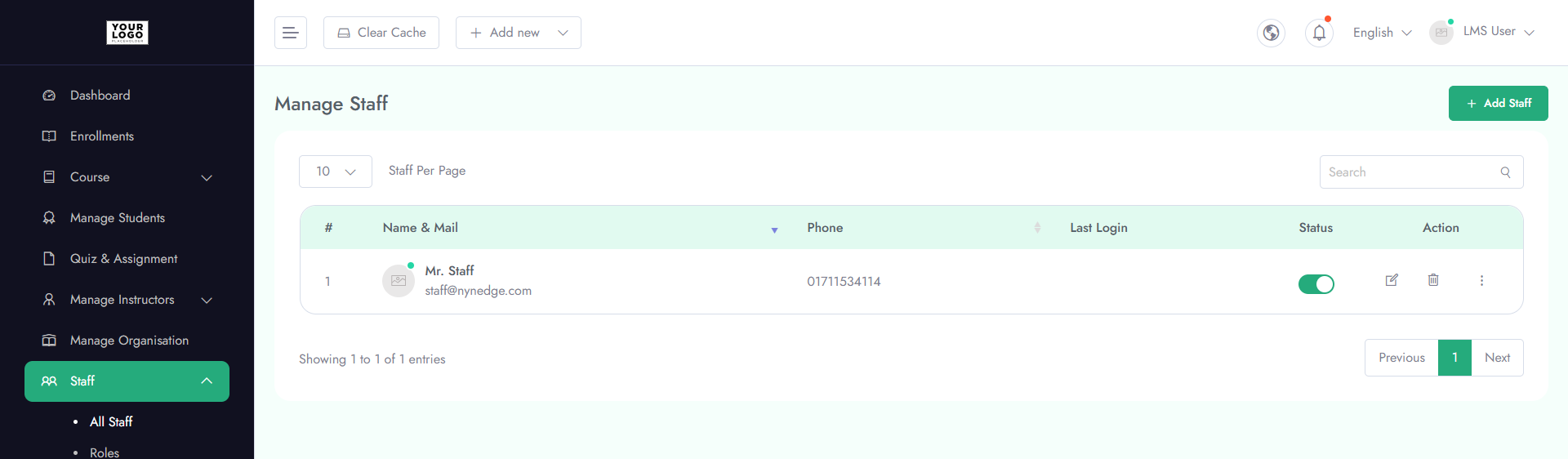
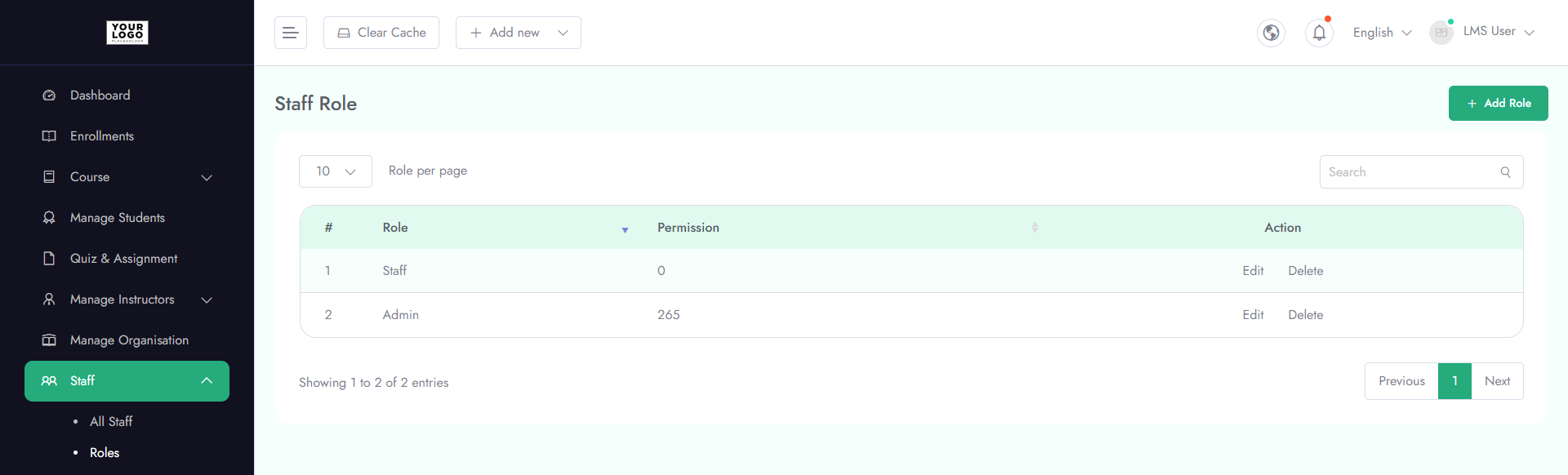
Manage platform users and control access levels:
- 1. Staff Details - Name, email, and role
- 2. Roles & Permissions - Assign specific permissions for each staff member (e.g., course management, analytics access)
- 3. Enable/Disable - Activate or deactivate staff accounts as needed
- 4. Actions - Edit staff details or remove users
Watch Tutorial
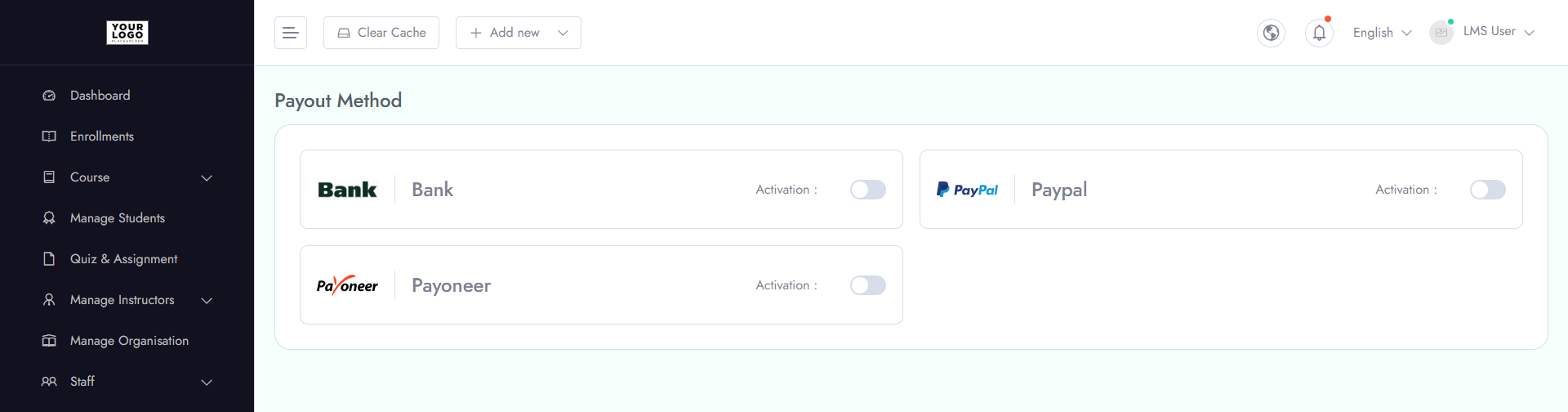
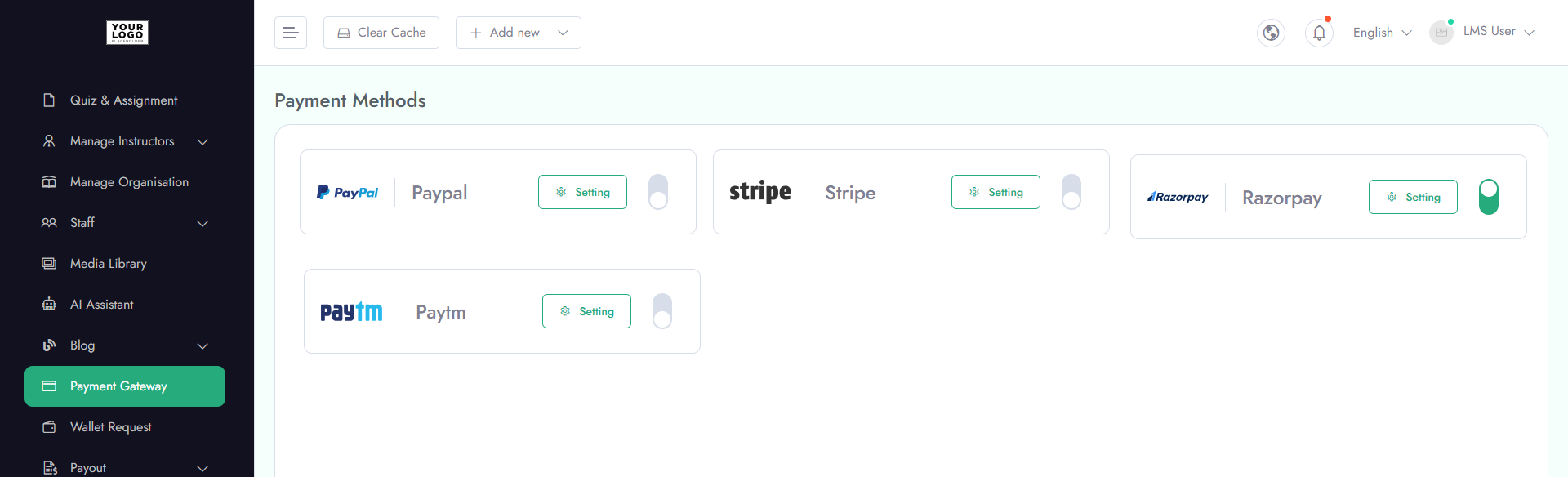
Configure and manage payment options for your LMS:
- 1. Supported Gateways - Stripe, Razorpay, PayPal, Paytm
- 2. Setup - Connect your merchant accounts to enable transactions
- 3. Status - Enable or disable specific payment gateways as needed
- 4. Transaction Management - Track payments, refunds, and payout history
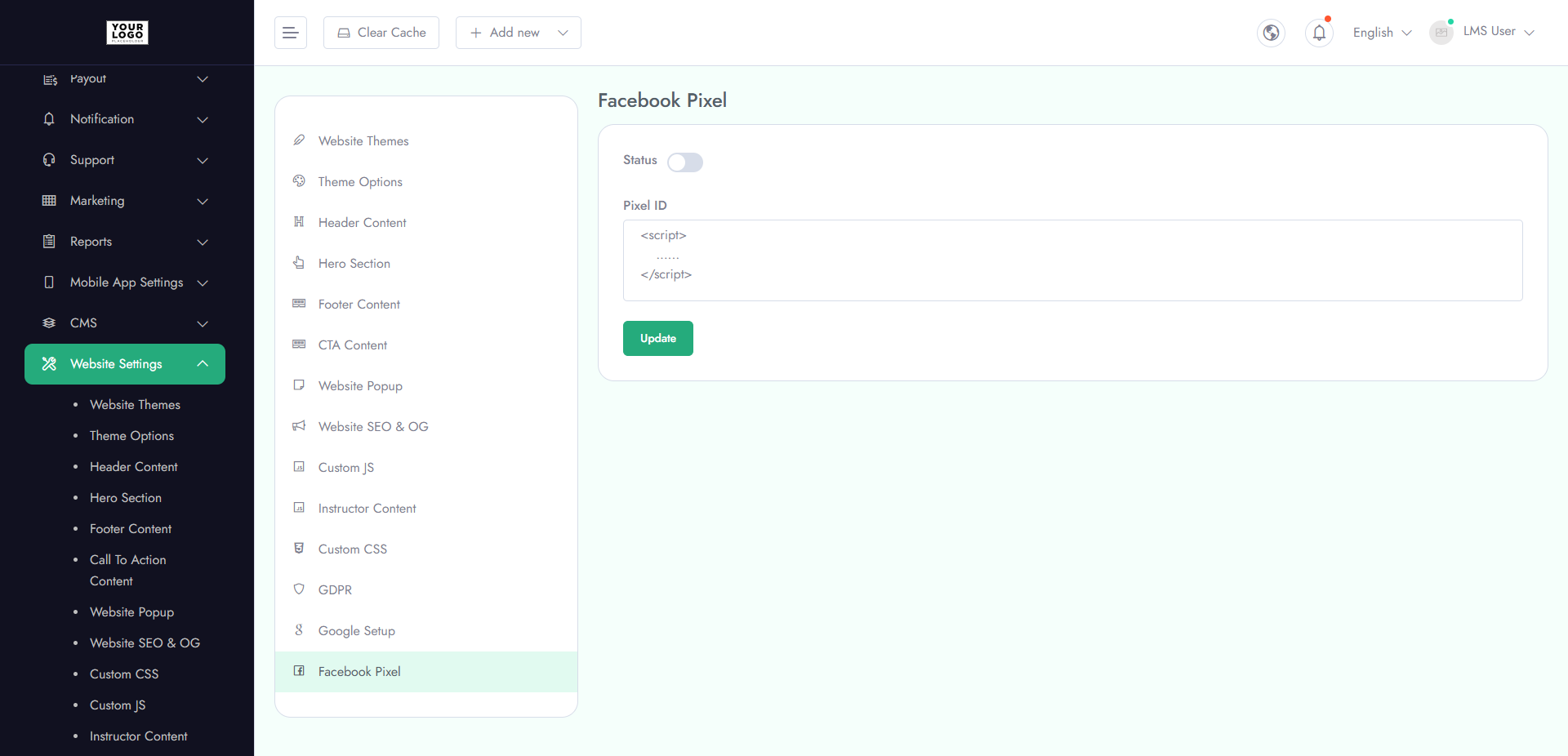
Track user activity and optimize marketing campaigns with Facebook Pixel:
- 1. Setup Pixel - Add your Facebook Pixel ID to the LMS
- 2. Event Tracking - Monitor page views, course enrollments, and conversions
- 3. Analytics - Gain insights on user behavior for targeted advertising
- 4. Enable/Disable - Turn integration on or off as needed
Watch Tutorial
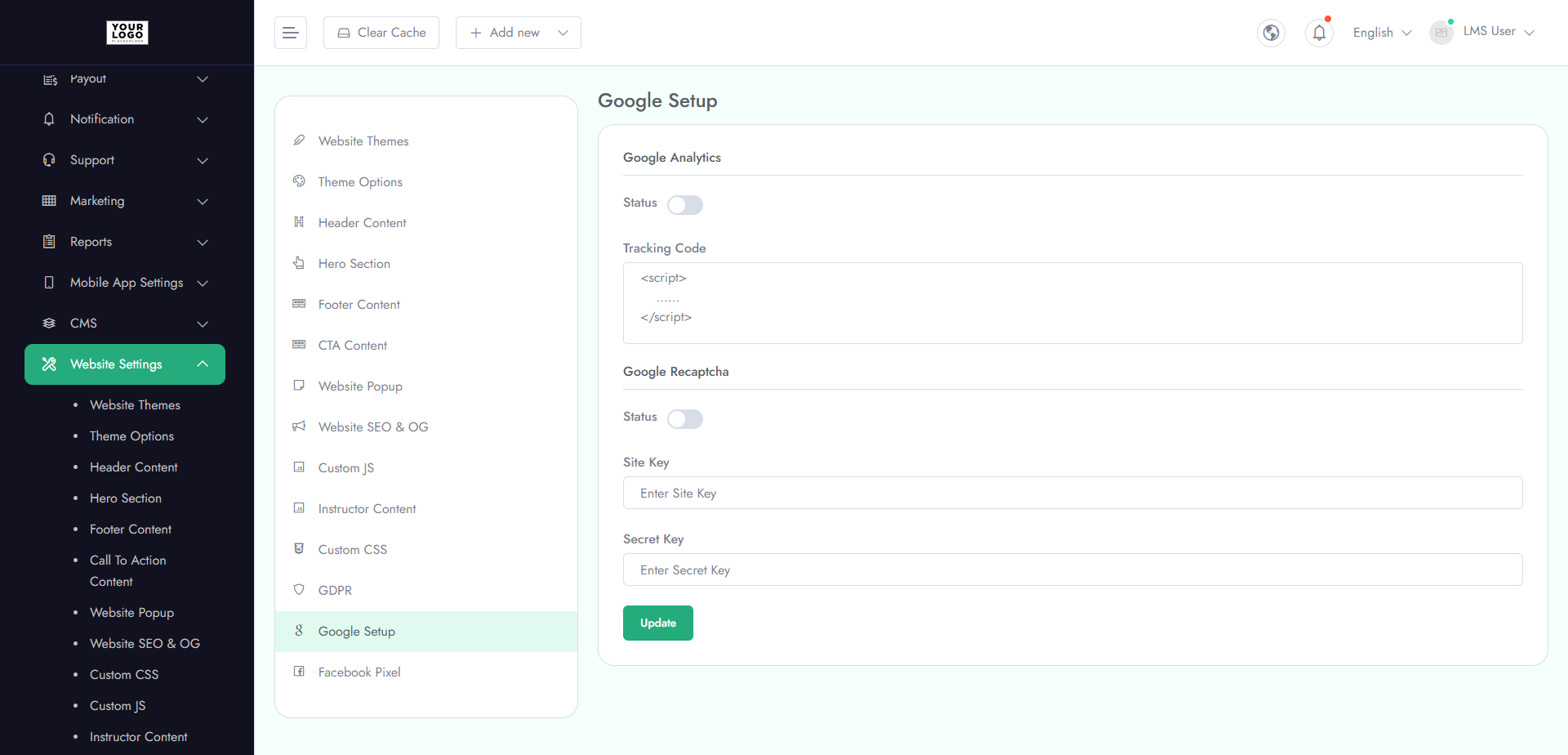
Manage tracking and security for your LMS:
Google Analytics
- 1. Setup - Add your Google Analytics tracking ID
- 2. User Insights - Track learner activity, page views, and course engagement
- 3. Reports - Analyze traffic sources, behavior, and conversions
Google reCAPTCHA
- 1. Setup - Add Site Key and Secret Key
- 2. Security - Protect login, registration, and forms from bots
- 3. Enable/Disable - Turn reCAPTCHA on or off for specific pages
Watch Tutorial
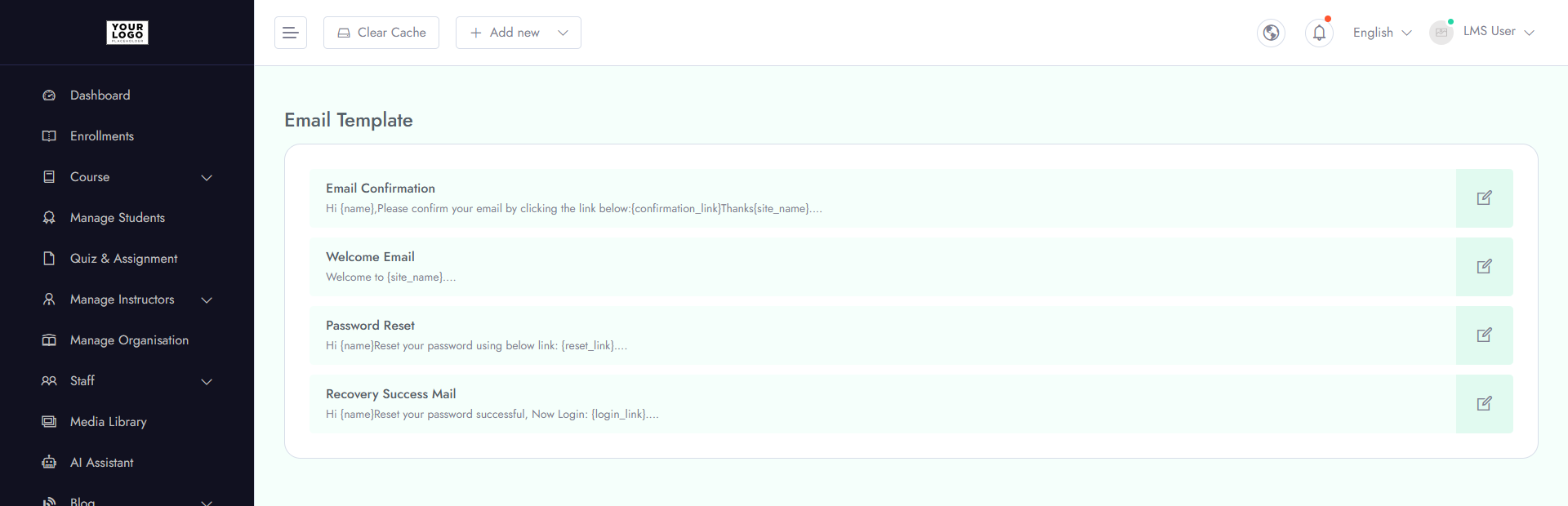
Manage and customize the emails sent from your LMS:
- 1. Templates - Pre-designed templates for notifications, course enrollment, assignments, and certificates
- 2. Custom Content - Edit subject lines, body text, and branding elements
- 3. Variables - Use dynamic placeholders like student name, course title, and completion date
- 4. Enable/Disable - Activate or deactivate specific email templates as needed
Watch Tutorial
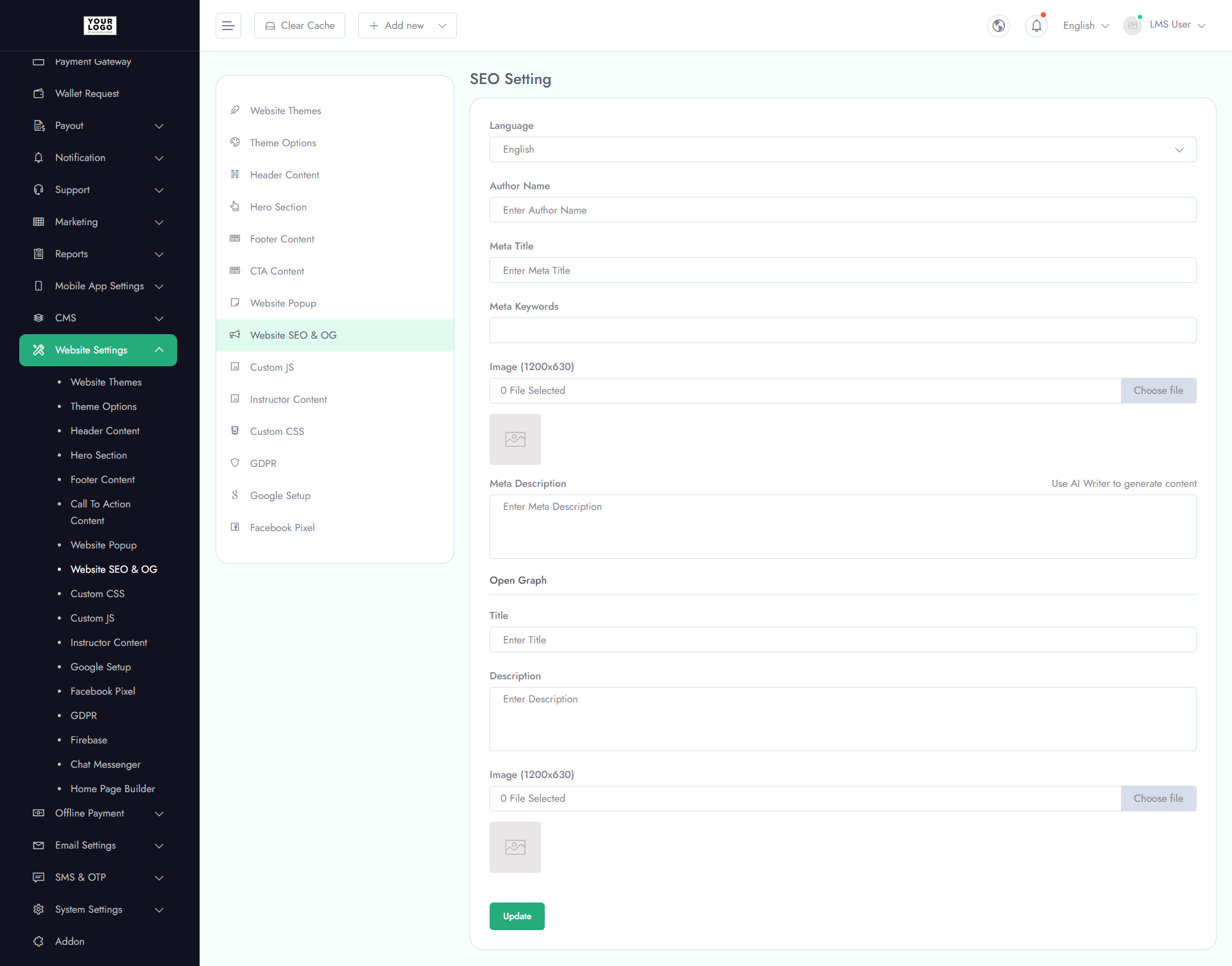
Optimize your LMS website for search engines to improve visibility:
- 1. Meta Title & Description - Add site-wide title and description
- 2. Keywords - Define main keywords for better search ranking
- 3. Open Graph (OG) Settings - Configure title, description, and image for social media sharing
- 4. Sitemap & Robots.txt - Manage crawling and indexing for search engines
- 5. Enable/Disable SEO - Turn site-wide SEO settings on or off
Watch Tutorial
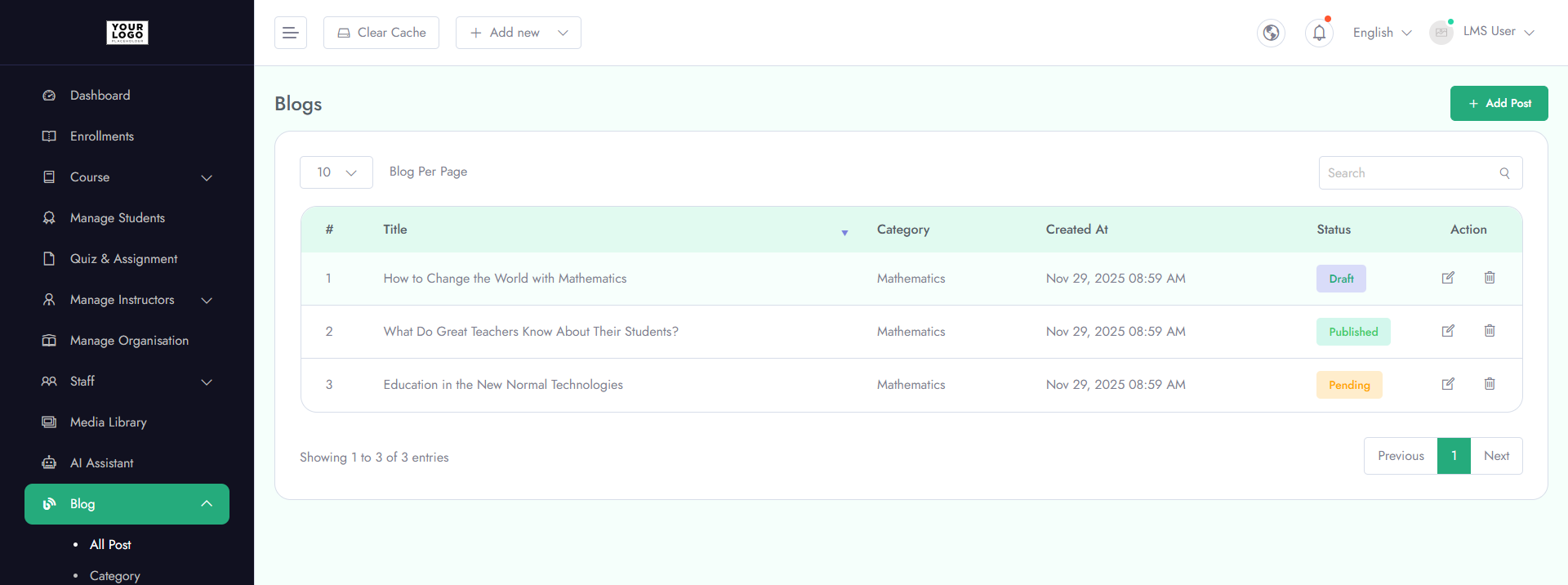
Manage and publish content to engage learners and improve SEO.
Blog List
- 1. Title & Author - View blog titles and authors
- 2. Category - Organize blogs by topic
- 3. Status - Published, Draft, or Scheduled
- 3. Actions - Edit or Delete blogs
Add Blog
- 1. Title & Content - Enter blog title and body text
- 2. Media - Upload images or embed videos
- 3. Category & Tags - Assign relevant categories and tags
- 4. SEO - Add meta title, description, and keywords
- 5. Publish Settings - Set status and schedule publishings
Watch Tutorial
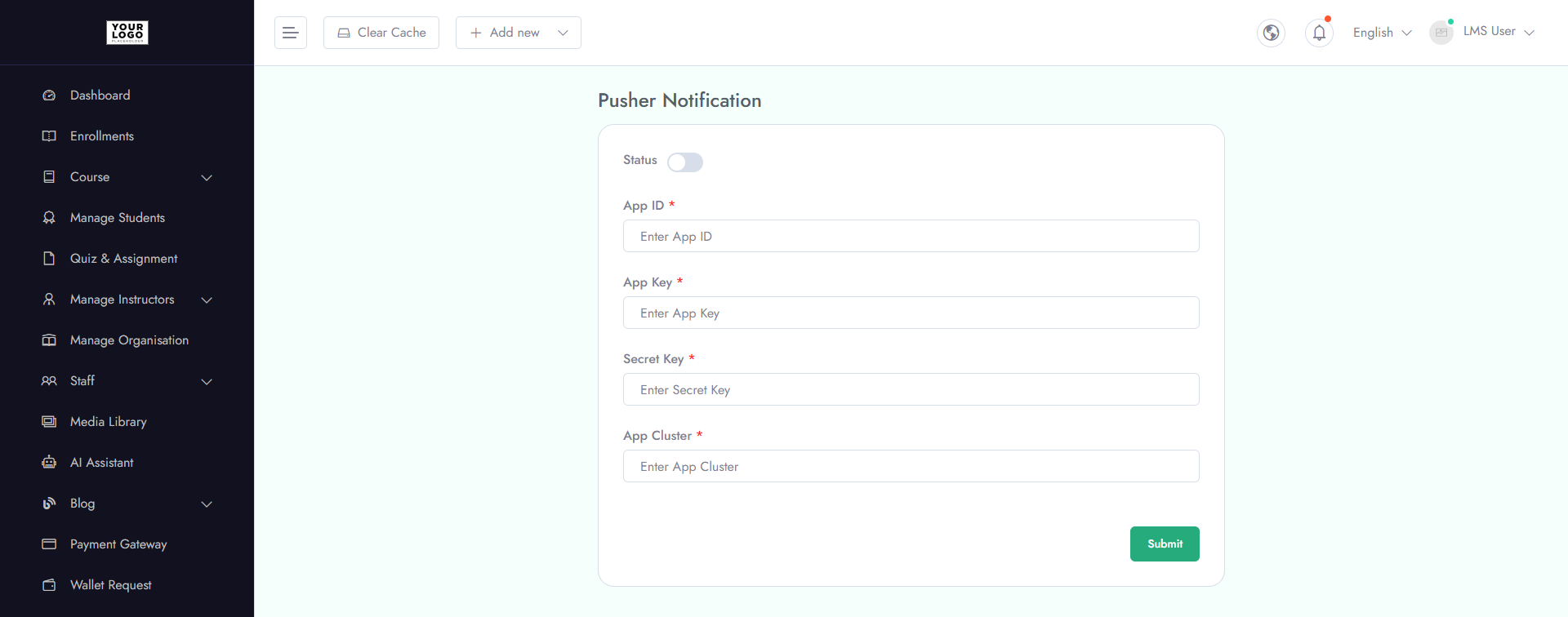
Enable real-time notifications across your LMS using Pusher:
- 1. API Configuration - Add Pusher App ID, Key, Secret, and Cluster
- 2. Event Management - Define which events trigger notifications (e.g., new enrollment, assignment submission, course updates)
- 3. Real-Time Alerts - Instantly notify learners and instructors within the platform
- 4. Enable/Disable - Turn Pusher notifications on or off as needed
Watch Tutorial
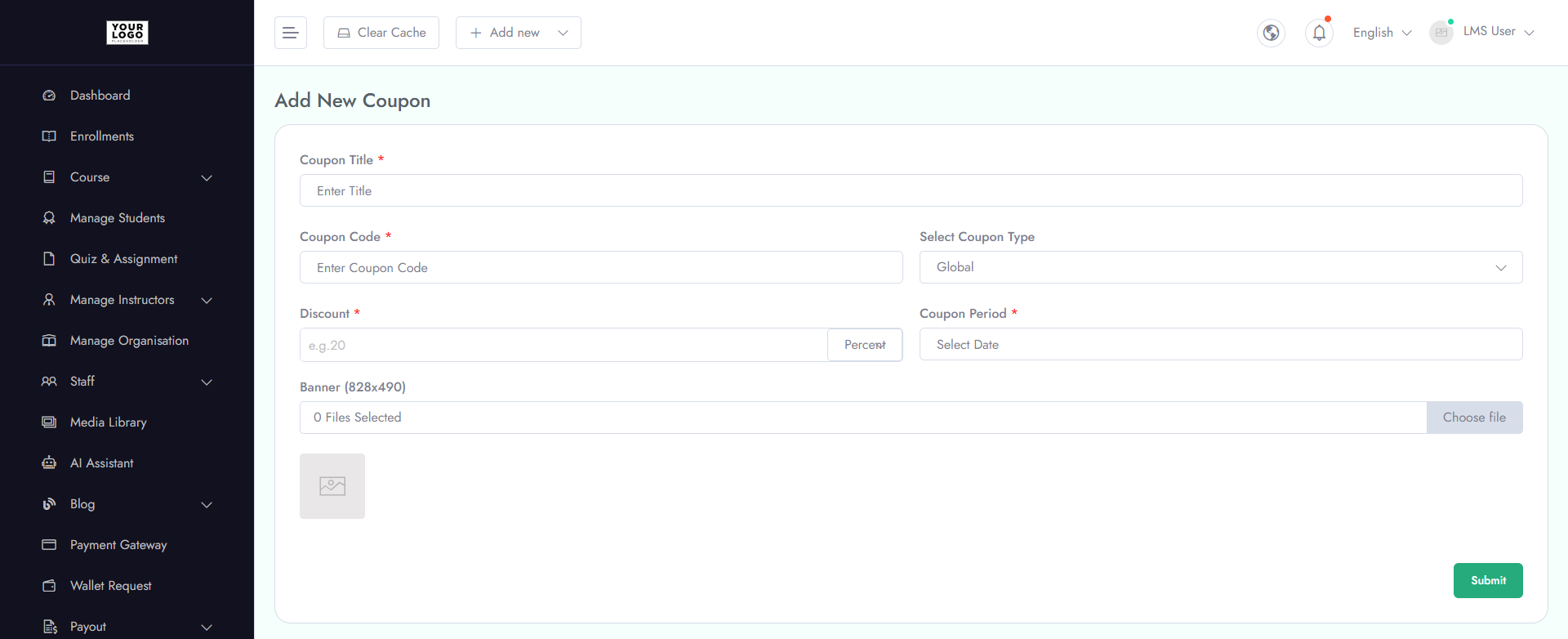
Create and manage discount codes to promote courses:
- 1. Coupon Code - Define a unique code for learners to use
- 2. Discount - Set discount as a percentage (%) or fixed amount
- 3. Expiry Date - Set a valid date range for coupon usage
- 4. Status - Enable or disable coupons
- 5. Actions - Edit or delete existing coupons
Watch Tutorial
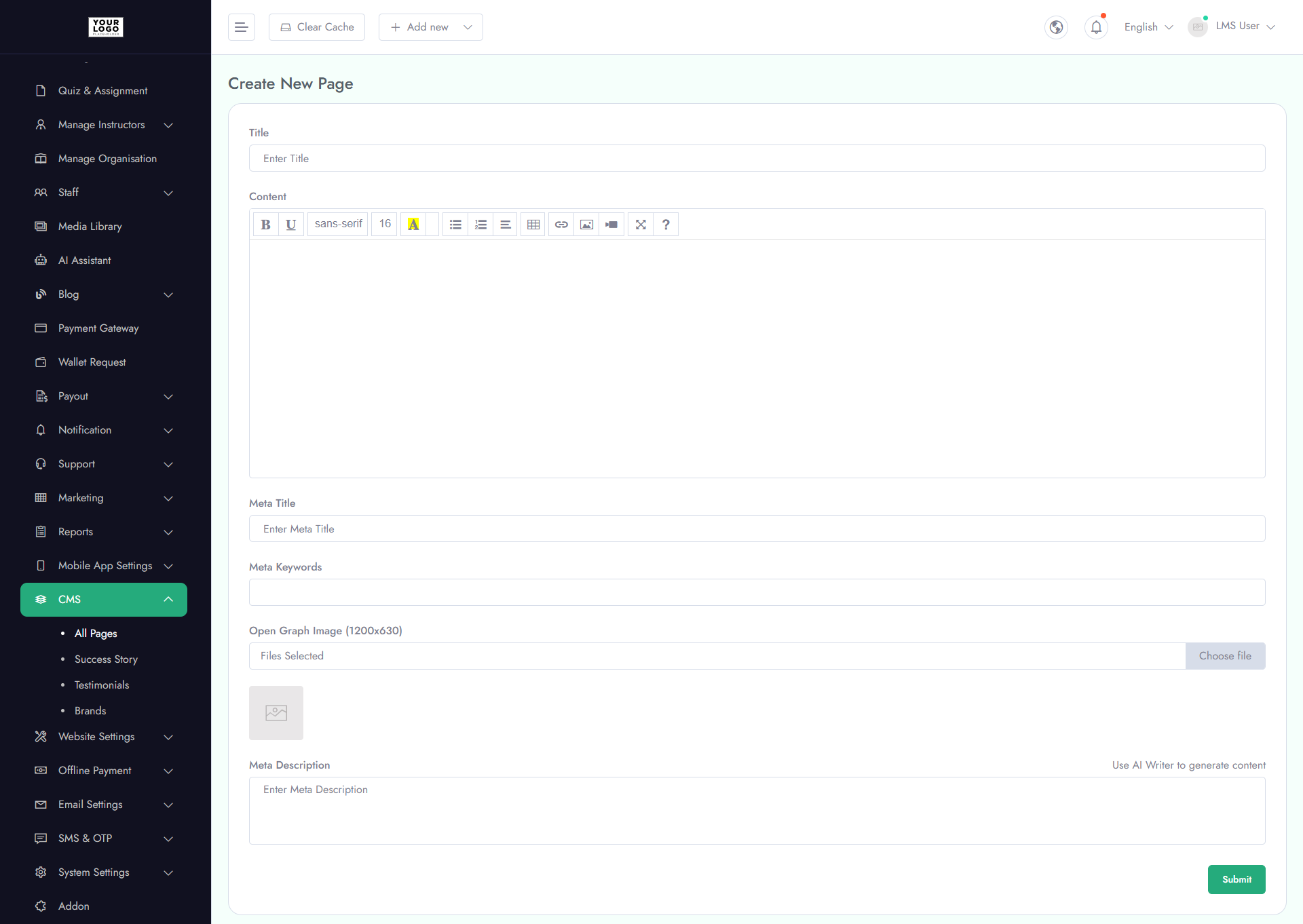
Manage static and dynamic pages on your LMS website.
CMS Pages List
- 1. Page Title - View all created pages
- 2. Status - Published or Draft
- 3. Actions - Edit or Delete pages
Add/Edit Pages
- 1. Title & Content - Create page title and body text
- 2. Media - Upload images or embed videos
- 3. SEO - Add meta title, description, and keywords
- 4. Publish Settings - Set page status and schedule
Watch Tutorial
Manage referral rewards and payout options for users:
- 1. Referral Tracking - Monitor users who earn rewards through referrals
- 2. Payout Options - Allow payouts via Bank Transfer or PayPal
- 3. Amount & Status - Track reward amounts and payout status
- 4. Actions - Approve, reject, or edit payoutss